
Start here: using the DSE Support Center
Summary: Use the Support Center to create and track service requests, read customer-safe documentation, and keep every reply attached to the correct ticket.
AudienceDSE customers and authorized contacts
Procedure5 guided sections
Checklist23 specific actions
ReviewedJuly 16, 2026
Visual walkthrough4 visual references for this procedure
01Connect to the production customer helpdesk
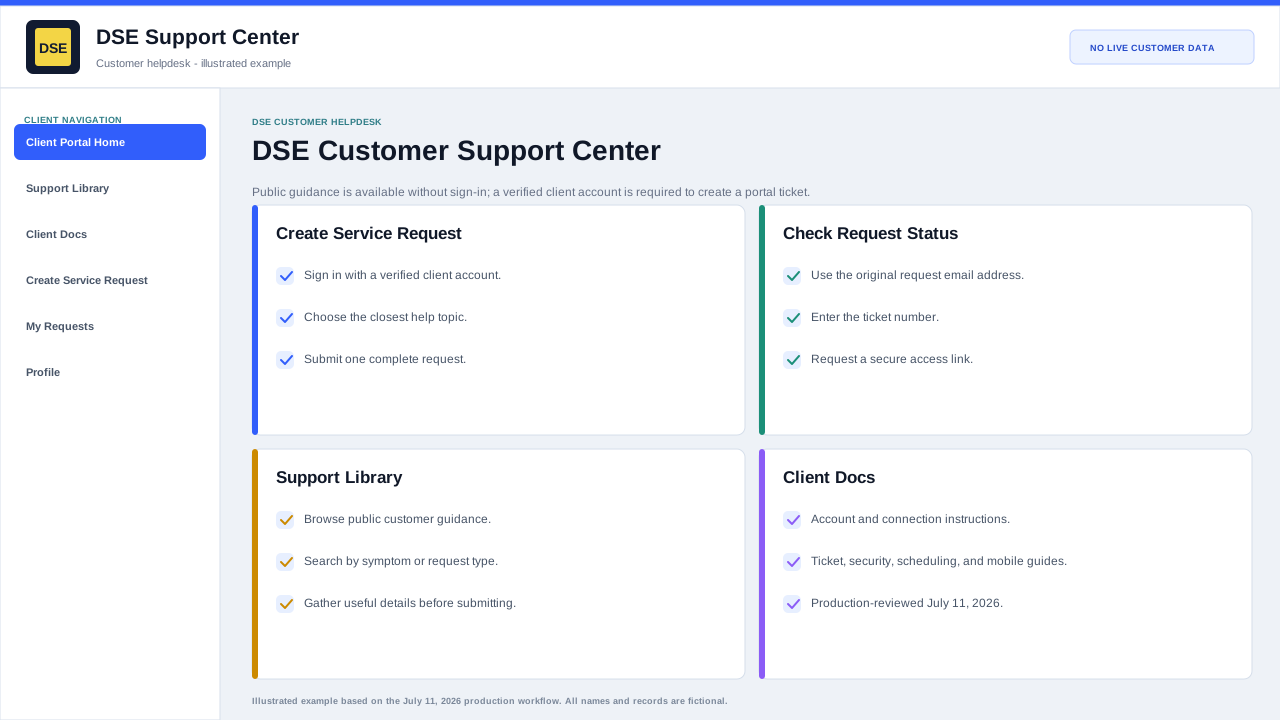
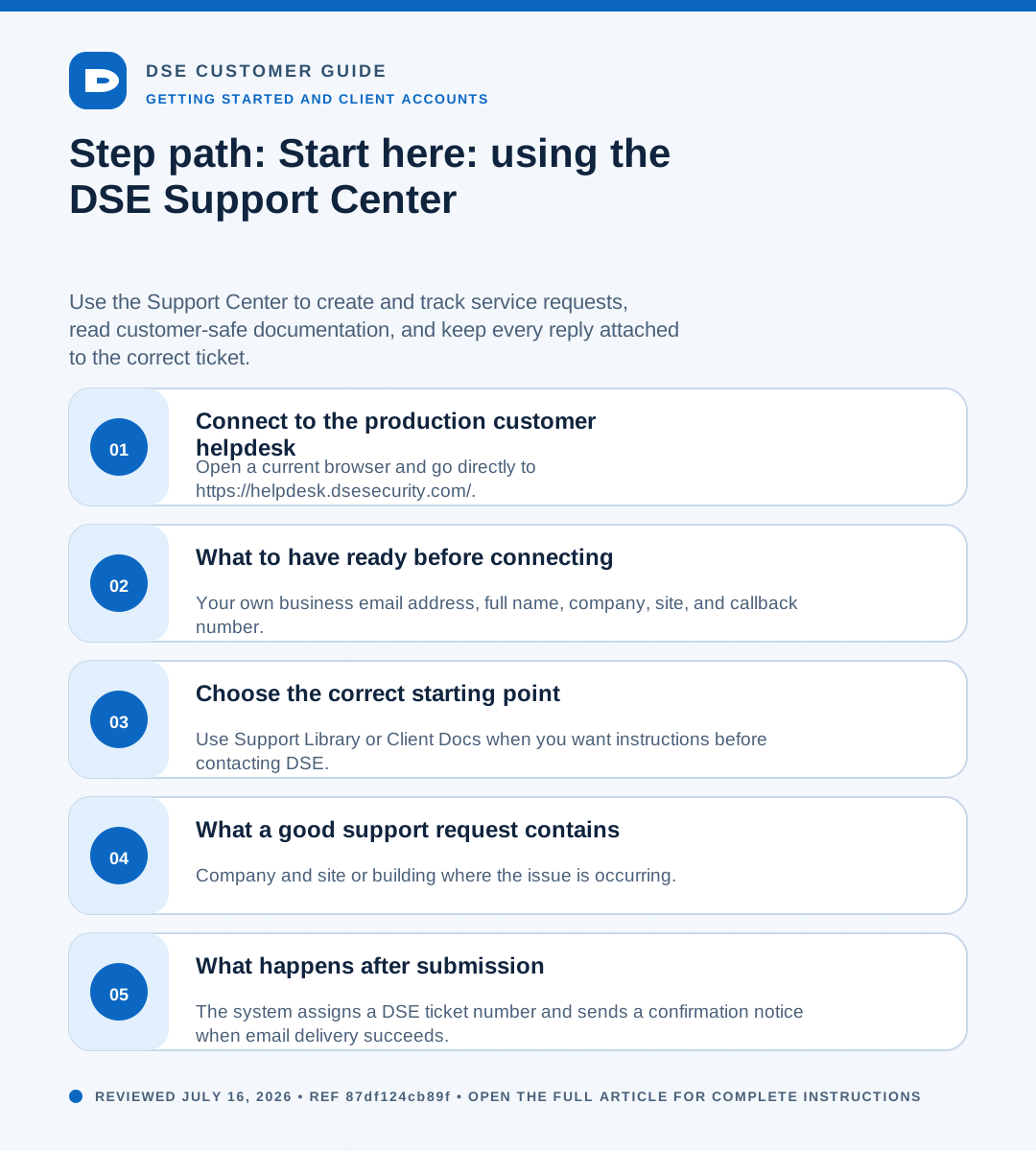
- Open a current browser and go directly to https://helpdesk.dsesecurity.com/.
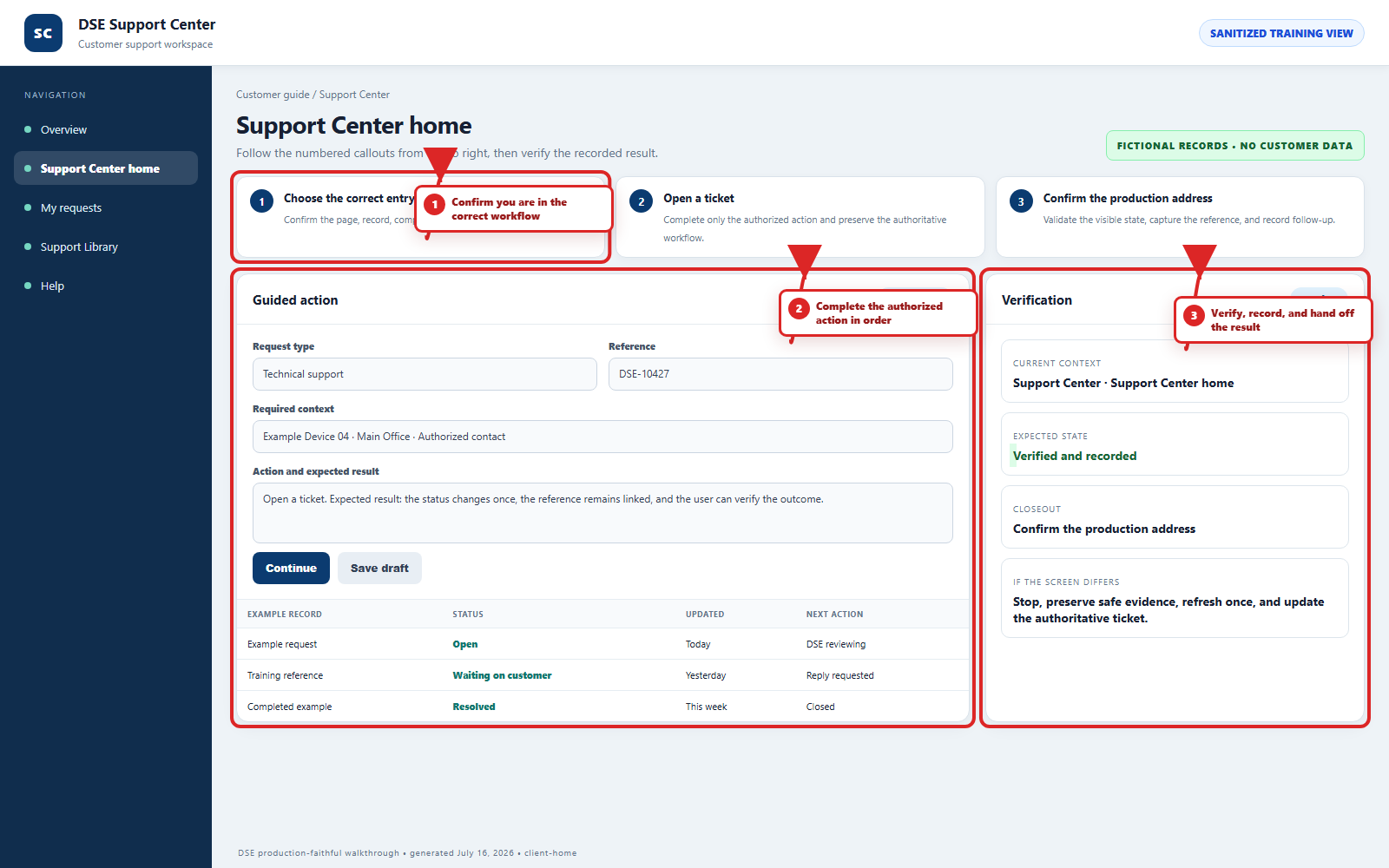
- Confirm the address bar shows HTTPS and the exact dsesecurity.com domain. Stop if the browser shows a certificate warning, a different domain, or an unexpected sign-in page.
- Use Support Library or Client Docs without signing in when you need public guidance.
- Choose Sign In or Create Service Request when you need to create a portal ticket. Portal ticket creation requires a verified client account.
- Use Check Request Status when you have the email address and ticket number for an existing request.
- Use helpdesk@detection-systems.com when email is the better intake path or a portal problem prevents ticket creation.
02What to have ready before connecting
- Your own business email address, full name, company, site, and callback number.
- A concise issue summary, first known time, affected people or devices, business impact, and safe evidence.
- The ticket number from the confirmation email when the request already exists.
- A current version of Chrome, Edge, Safari, or another browser approved by your organization.
03Choose the correct starting point
- Use Support Library or Client Docs when you want instructions before contacting DSE.
- Use Create Service Request for a new issue. The production portal requires a verified client account before the ticket form opens.
- Use Check Request Status when you have the ticket number and the email address used on the request.
- Use Sign In to see the tickets available to your account and to reply from the portal.
04What a good support request contains
- Company and site or building where the issue is occurring.
- Affected person, workstation, camera, door, panel, application, network, or service.
- What changed, when the problem began, and whether it is constant or intermittent.
- Business impact, number of affected users or devices, and any safe workaround.
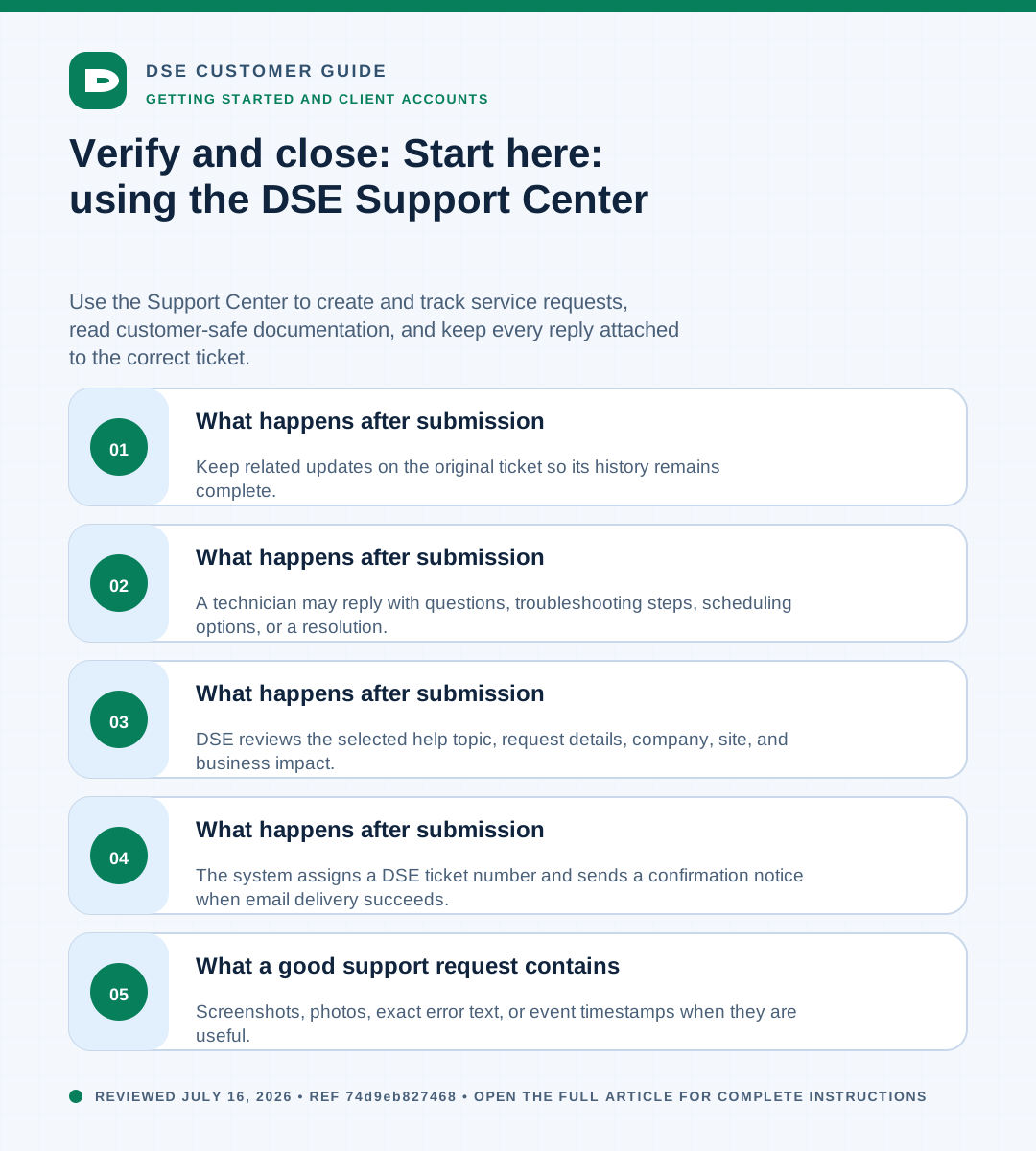
- Screenshots, photos, exact error text, or event timestamps when they are useful.
05What happens after submission
- The system assigns a DSE ticket number and sends a confirmation notice when email delivery succeeds.
- DSE reviews the selected help topic, request details, company, site, and business impact.
- A technician may reply with questions, troubleshooting steps, scheduling options, or a resolution.
- Keep related updates on the original ticket so its history remains complete.
Need a person?
Contact DSE Support →
Open a service request with the details you have.
Include the site, affected device or user, exact error, when it started, urgency, and screenshots when available.