
Use the DSE tray icon to check status or request help
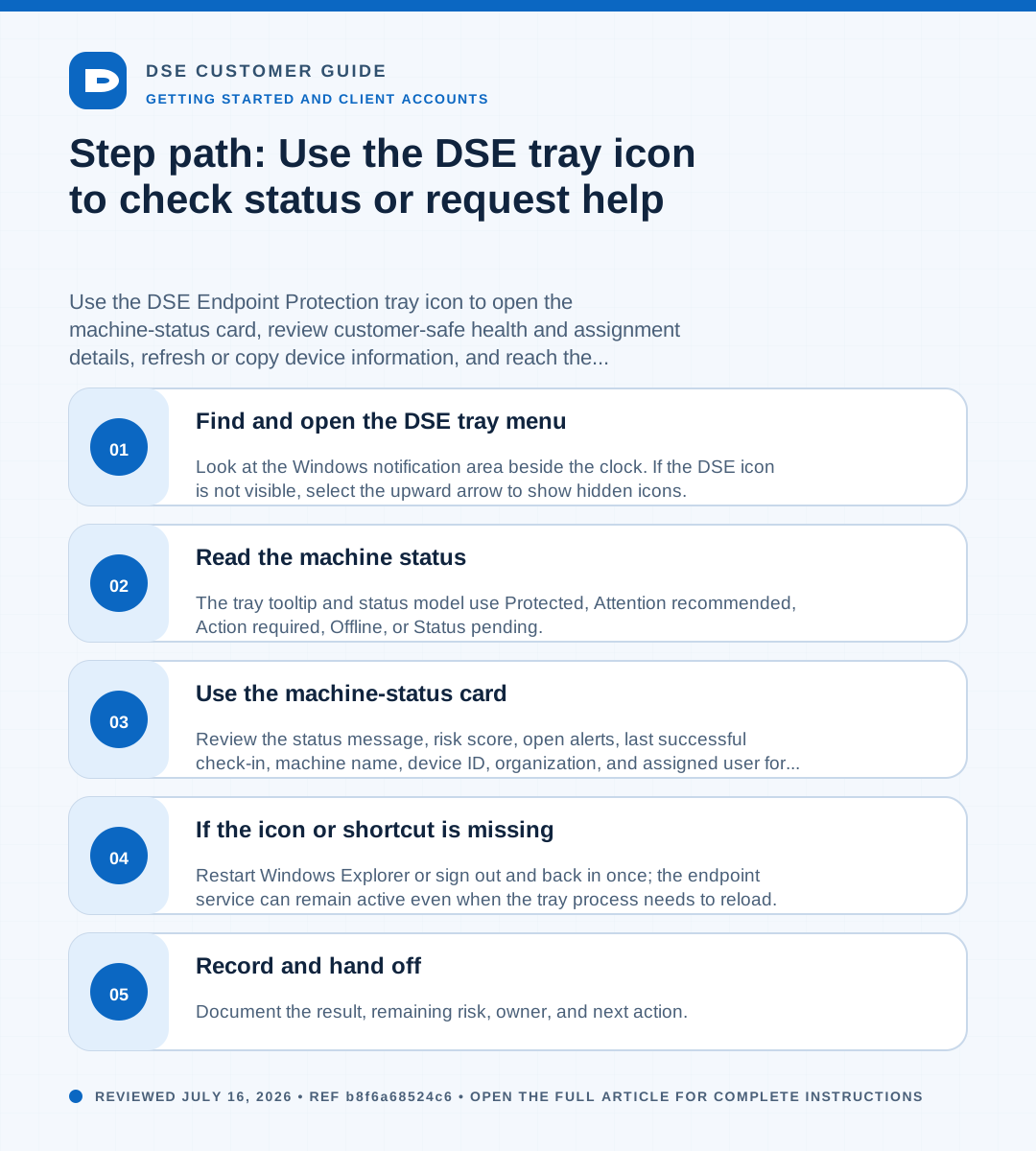
Summary: Use the DSE Endpoint Protection tray icon to open the machine-status card, review customer-safe health and assignment details, refresh or copy device information, and reach the Support Center.
AudienceDSE customers and authorized contacts
Procedure4 guided sections
Checklist20 specific actions
ReviewedJuly 16, 2026
Visual walkthrough4 visual references for this procedure
02Read the machine status
- The tray tooltip and status model use Protected, Attention recommended, Action required, Offline, or Status pending.
- The expanded Machine Status card uses uppercase banners: PROTECTED, CHECK RECOMMENDED, ACTION REQUIRED, AGENT OFFLINE, or STATUS PENDING. CHECK RECOMMENDED is the card label for Attention recommended.
- Protected means the latest customer-safe agent data does not currently require your attention. It does not guarantee every application or connected device is working.
- Attention recommended or CHECK RECOMMENDED means one or more health signals should be reviewed. Record the message, risk score, open alerts, and last check-in.
- Action required means the reported condition is more serious or urgent. Open a ticket promptly and state the business impact.
- Offline or AGENT OFFLINE means the tray cannot confirm a recent successful agent check-in. Status pending means it is still waiting for usable data.
03Use the machine-status card
- Review the status message, risk score, open alerts, last successful check-in, machine name, device ID, organization, and assigned user for this computer.
- Choose Refresh status to read the latest customer-safe data. The tray also refreshes automatically while it is running.
- Choose Copy device info to place the displayed support-safe details on the Windows clipboard, then review them before pasting into a ticket.
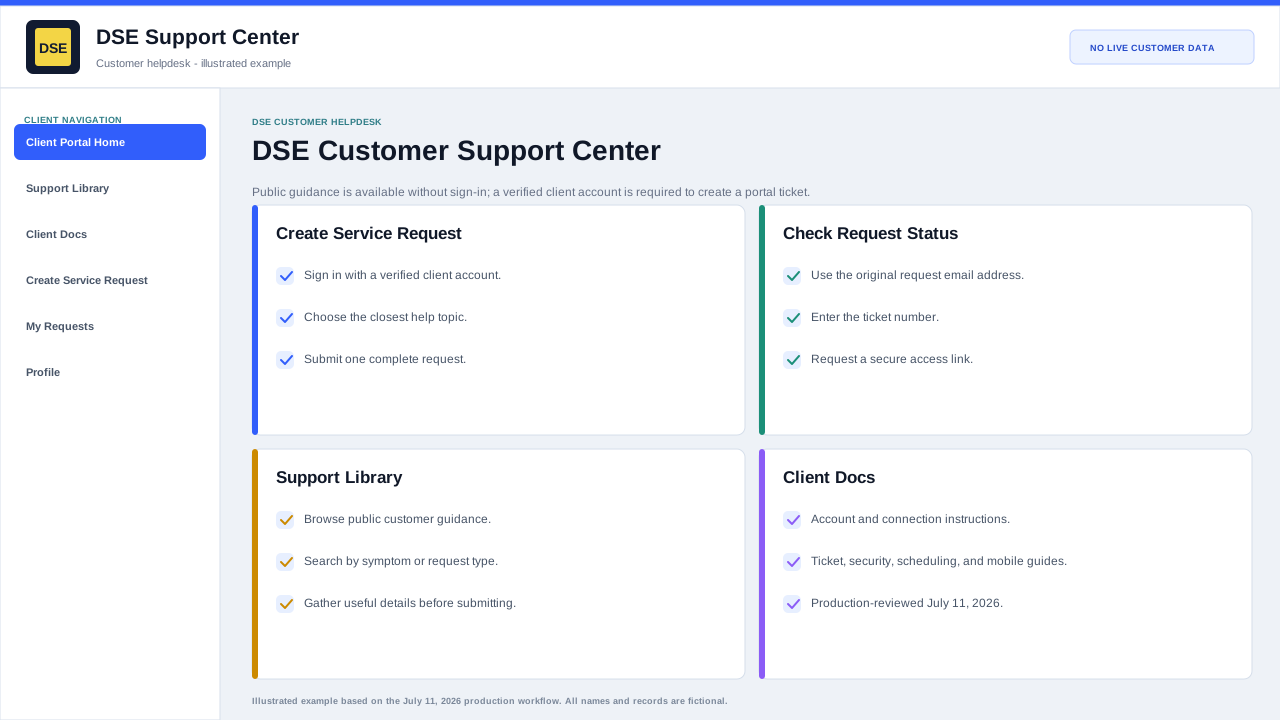
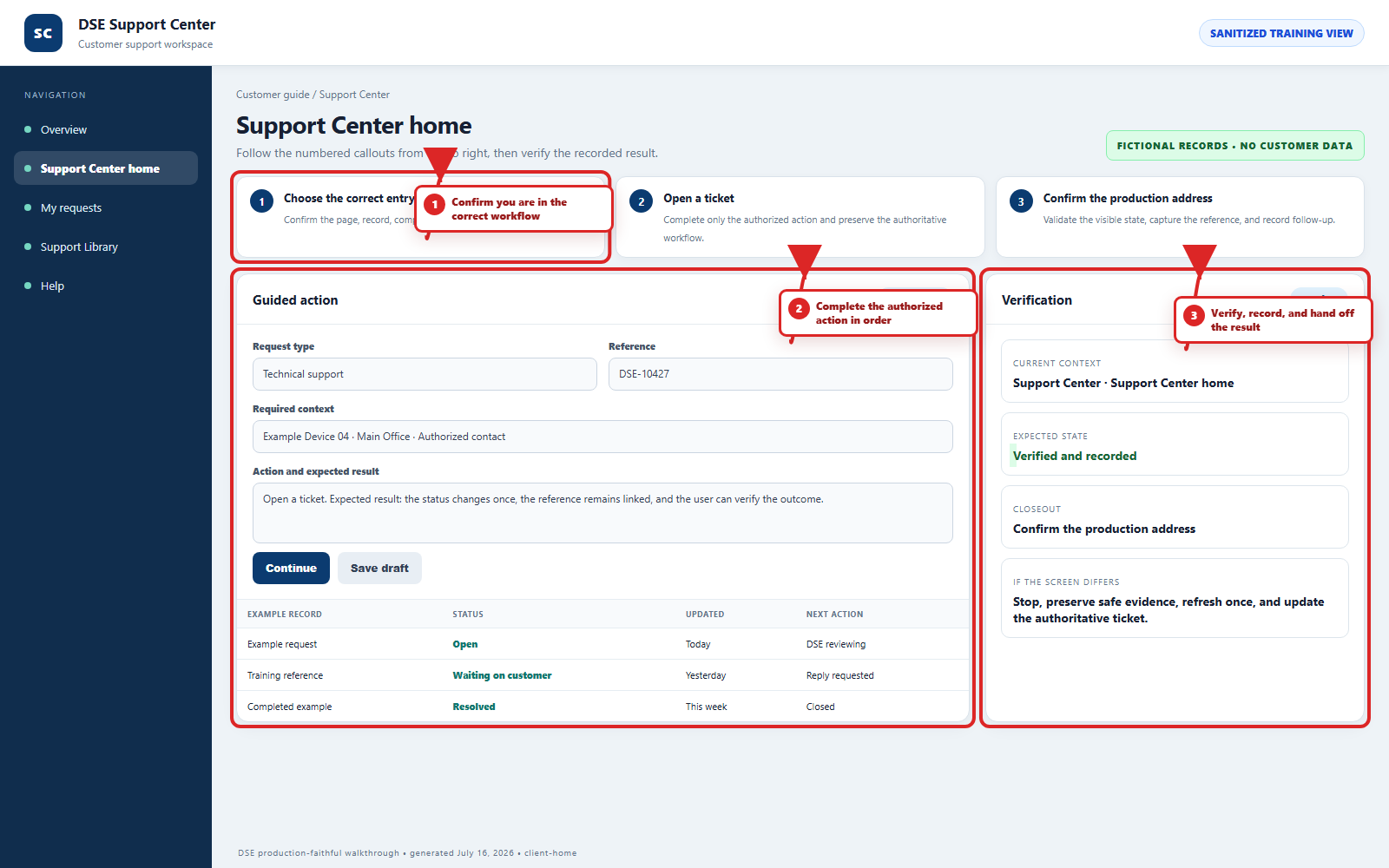
- Choose Open a support ticket or Check ticket status; sign in when prompted and keep all follow-up for the same issue in one ticket.
- After pasting device information, add what you expected, what happened, when it started, the business impact, and any safe error message.
04If the icon or shortcut is missing
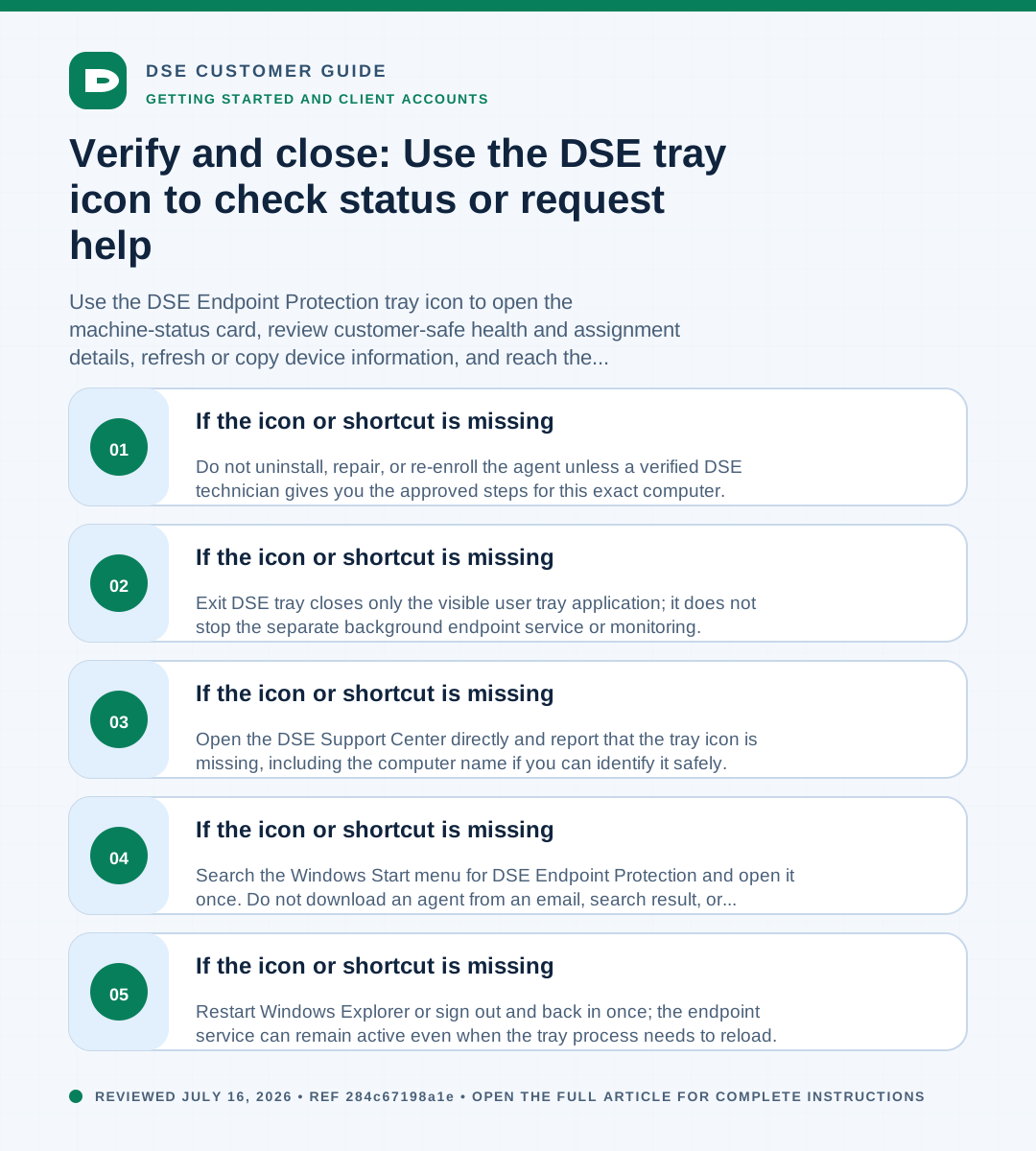
- Restart Windows Explorer or sign out and back in once; the endpoint service can remain active even when the tray process needs to reload.
- Search the Windows Start menu for DSE Endpoint Protection and open it once. Do not download an agent from an email, search result, or unapproved website.
- Open the DSE Support Center directly and report that the tray icon is missing, including the computer name if you can identify it safely.
- Exit DSE tray closes only the visible user tray application; it does not stop the separate background endpoint service or monitoring.
- Do not uninstall, repair, or re-enroll the agent unless a verified DSE technician gives you the approved steps for this exact computer.
Need a person?
Contact DSE Support →
Open a service request with the details you have.
Include the site, affected device or user, exact error, when it started, urgency, and screenshots when available.