
What to expect during a DSE remote support session
Summary: Know how a legitimate DSE remote session starts, what the technician may do, how your privacy is protected, and how to confirm the session has ended.
AudienceDSE customers and authorized contacts
Procedure4 guided sections
Checklist16 specific actions
ReviewedJuly 16, 2026
Visual walkthrough4 visual references for this procedure
01Before the session starts
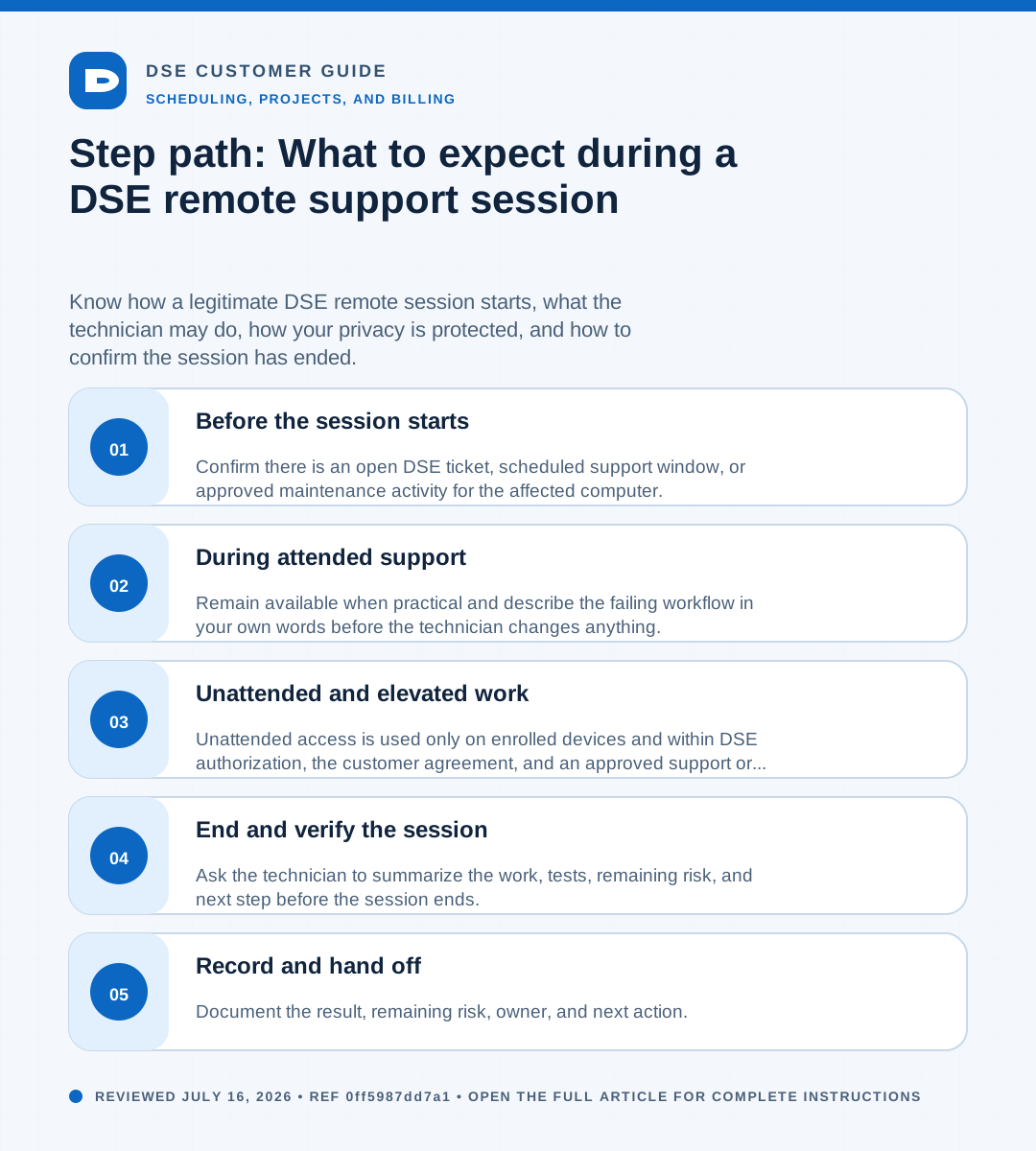
- Confirm there is an open DSE ticket, scheduled support window, or approved maintenance activity for the affected computer.
- Verify the technician name and purpose through the ticket, an expected callback, or another known DSE contact path.
- Save your work and close unrelated email, messages, documents, password managers, financial systems, and private browser tabs.
- Tell the technician about any business-critical process, recording restriction, regulated data, or action that requires your approval before control begins.
02During attended support
- Remain available when practical and describe the failing workflow in your own words before the technician changes anything.
- The technician may view the screen, move the pointer, type, use approved keyboard shortcuts, transfer specifically requested clipboard text, or open diagnostic tools.
- Ask for an explanation before any disruptive action such as restarting an application, signing out, rebooting, changing a security setting, or interrupting service.
- Use the ticket for decisions and follow-up; do not place passwords, MFA codes, recovery keys, or sensitive business data in chat or clipboard transfer.
03Unattended and elevated work
- Unattended access is used only on enrolled devices and within DSE authorization, the customer agreement, and an approved support or maintenance purpose.
- Administrative prompts, the secure Windows desktop, or Task Manager may be used when required to diagnose or repair the approved issue.
- A technician should minimize viewing unrelated content and record the reason, work performed, result, and any follow-up in the DSE work record.
- If the requested action is outside the agreed scope, the technician must stop and obtain the correct approval before continuing.
04End and verify the session
- Ask the technician to summarize the work, tests, remaining risk, and next step before the session ends.
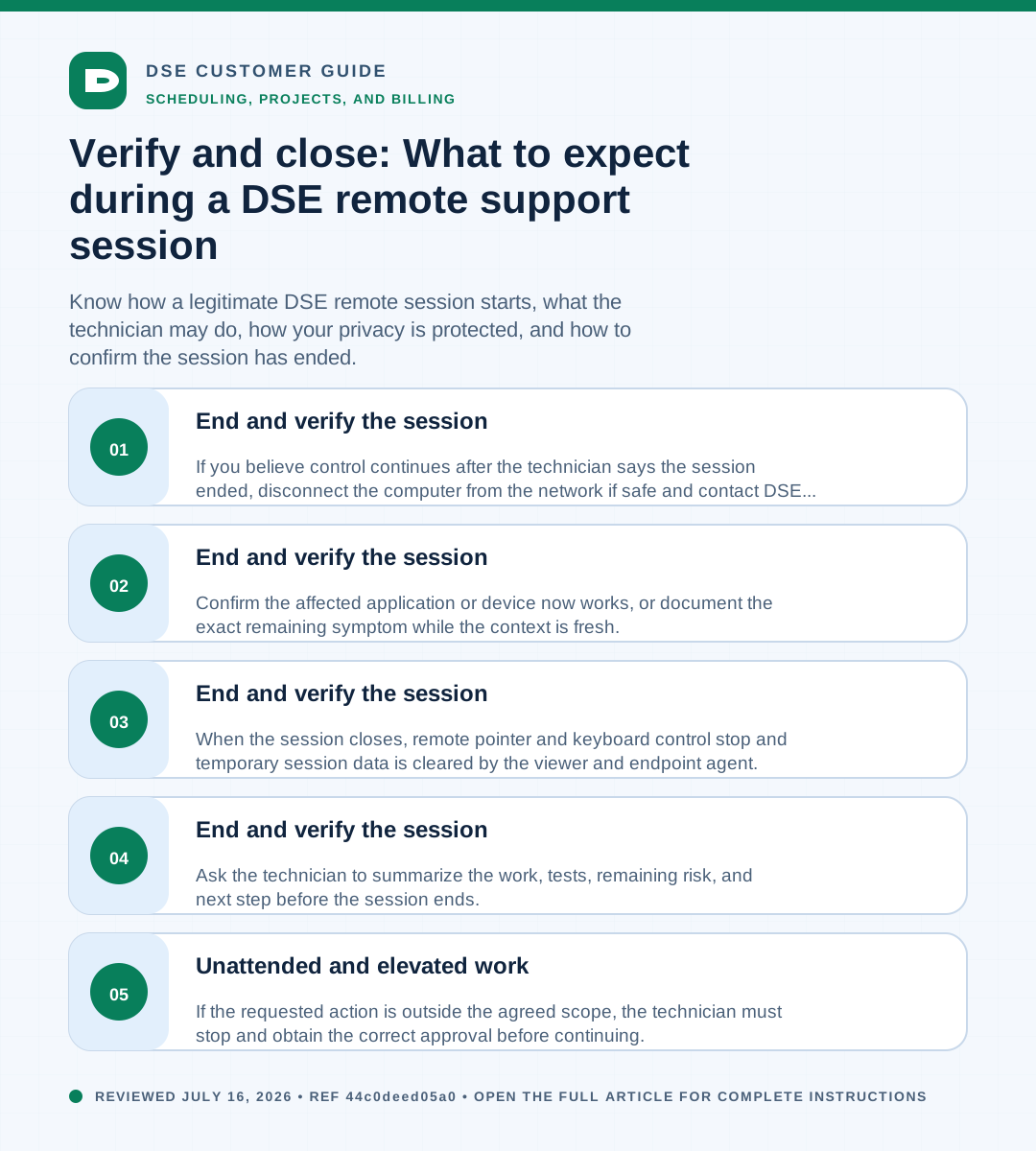
- When the session closes, remote pointer and keyboard control stop and temporary session data is cleared by the viewer and endpoint agent.
- Confirm the affected application or device now works, or document the exact remaining symptom while the context is fresh.
- If you believe control continues after the technician says the session ended, disconnect the computer from the network if safe and contact DSE immediately through a known channel.
Need a person?
Contact DSE Support →
Open a service request with the details you have.
Include the site, affected device or user, exact error, when it started, urgency, and screenshots when available.