
Copy, paste, keyboard shortcuts, and privacy during remote support
Summary: Use remote-session clipboard and keyboard features safely while keeping credentials, private records, and unrelated customer information out of the support session.
AudienceDSE customers and authorized contacts
Procedure4 guided sections
Checklist16 specific actions
ReviewedJuly 16, 2026
Visual walkthrough4 visual references for this procedure
01Prepare a privacy-safe workspace
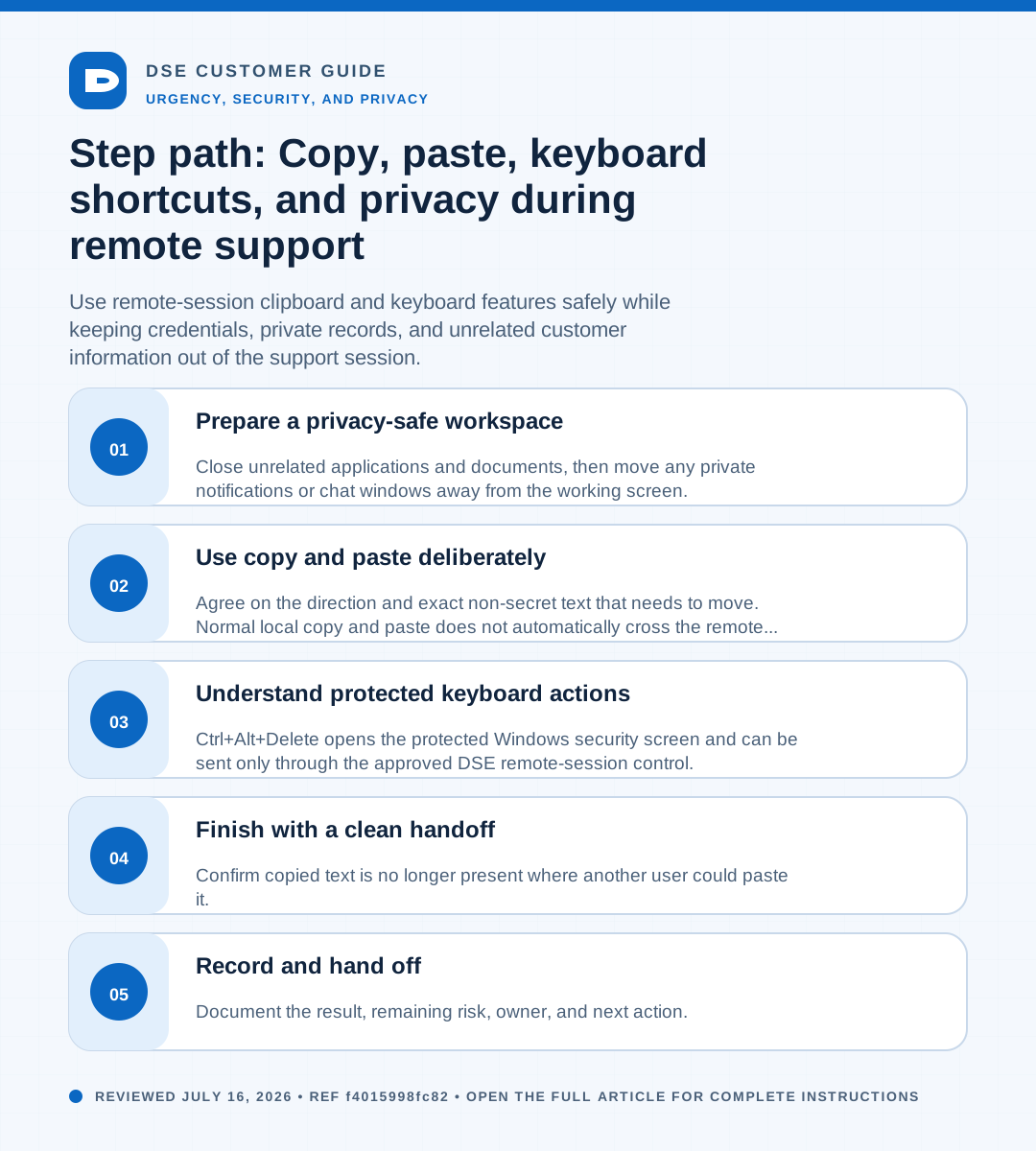
- Close unrelated applications and documents, then move any private notifications or chat windows away from the working screen.
- Remove passwords, one-time codes, recovery keys, payment information, alarm codes, and regulated records from the clipboard before support begins.
- Tell the technician if a screen, application, or record has special access, recording, or handling requirements.
- Use a test record or sanitized example whenever it can reproduce the problem without exposing live customer data.
02Use copy and paste deliberately
- Agree on the direction and exact non-secret text that needs to move. Normal local copy and paste does not automatically cross the remote session.
- To move approved text from the technician browser to the supported computer, the technician opens Text transfer, selects Paste to remote, reviews the text in the secure clipboard dialog, and explicitly sends it.
- To move approved text from the supported computer to the technician browser, the technician selects Copy from remote, reviews the returned text, and copies only the approved content into the browser clipboard.
- After either direction, the technician selects Clear secure relay immediately and clears or replaces the local clipboard. Do not transfer passwords, one-time codes, recovery keys, payment data, files, or unrelated customer information.
03Understand protected keyboard actions
- Ctrl+Alt+Delete opens the protected Windows security screen and can be sent only through the approved DSE remote-session control.
- Ctrl+Shift+Esc opens Windows Task Manager and can help inspect an unresponsive process or system performance.
- These shortcuts do not give the technician your password. You should enter a password or MFA code yourself when authentication is required.
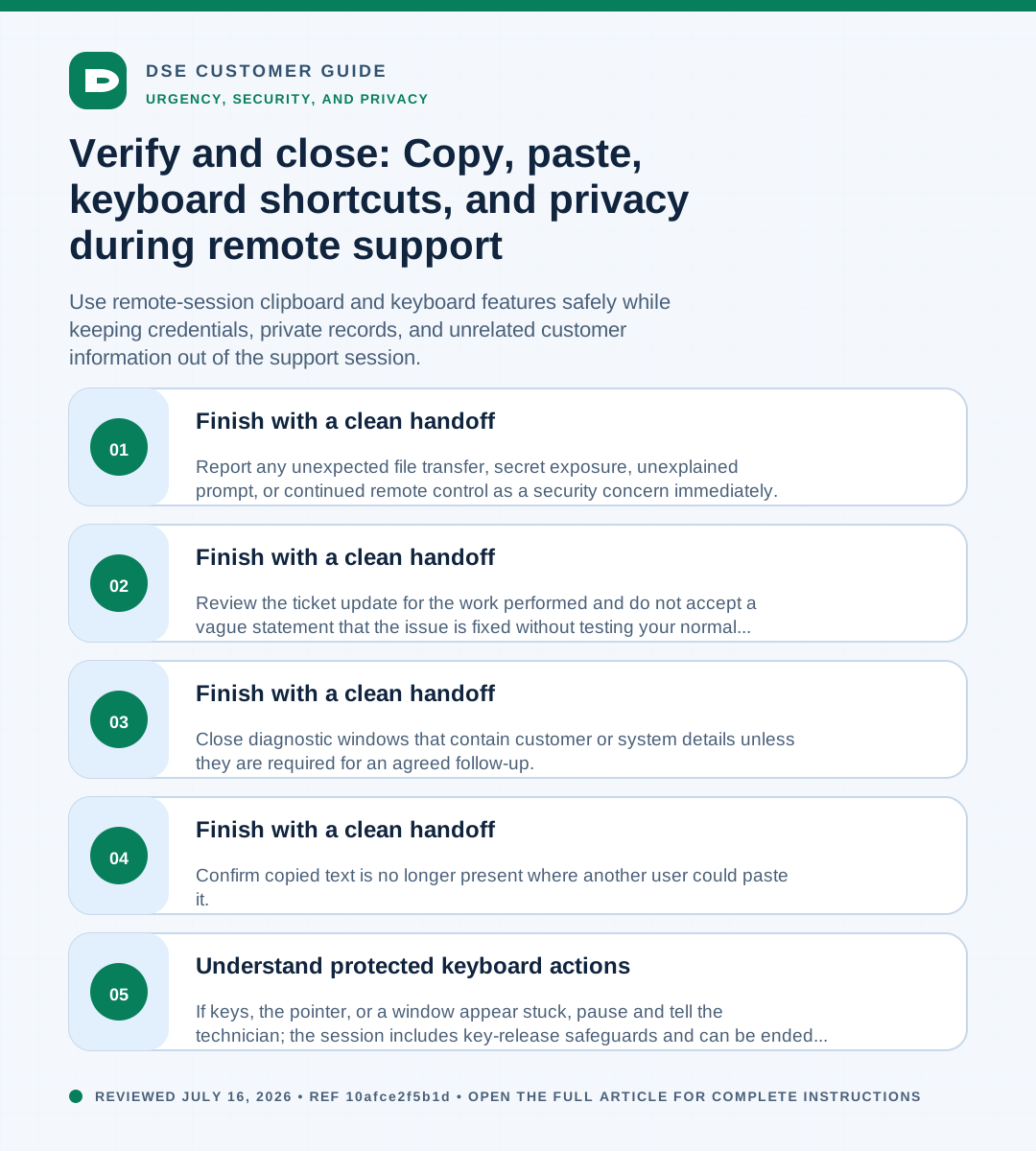
- If keys, the pointer, or a window appear stuck, pause and tell the technician; the session includes key-release safeguards and can be ended and restarted cleanly.
04Finish with a clean handoff
- Confirm copied text is no longer present where another user could paste it.
- Close diagnostic windows that contain customer or system details unless they are required for an agreed follow-up.
- Review the ticket update for the work performed and do not accept a vague statement that the issue is fixed without testing your normal workflow.
- Report any unexpected file transfer, secret exposure, unexplained prompt, or continued remote control as a security concern immediately.
Need a person?
Contact DSE Support →
Open a service request with the details you have.
Include the site, affected device or user, exact error, when it started, urgency, and screenshots when available.