
Understand DSE endpoint status and background monitoring
Summary: Understand what DSE endpoint status means, what background monitoring can check, and when a status change should become a support ticket.
AudienceDSE customers and authorized contacts
Procedure4 guided sections
Checklist12 specific actions
ReviewedJuly 16, 2026
Visual walkthrough4 visual references for this procedure
01Know what the agent monitors
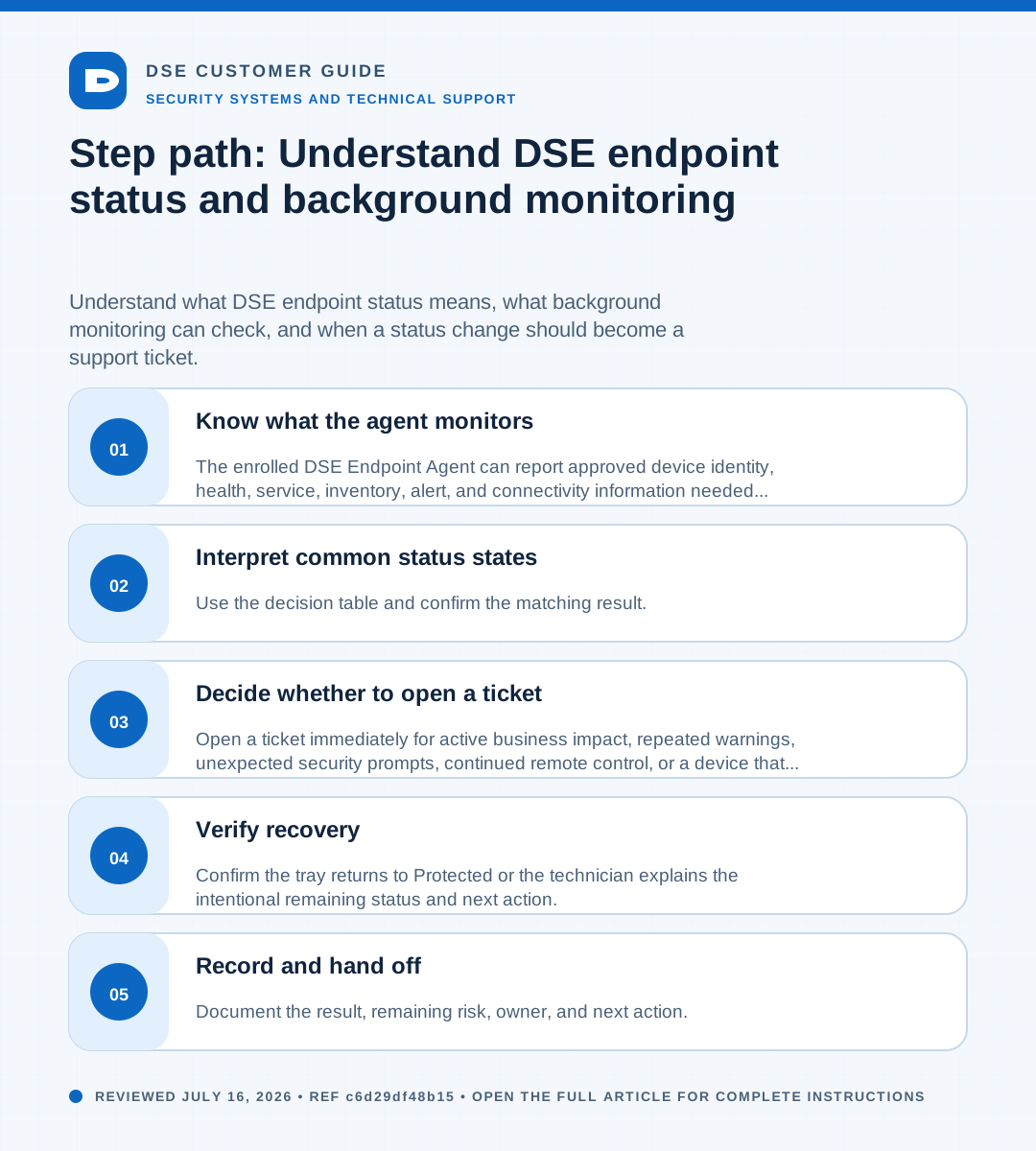
- The enrolled DSE Endpoint Agent can report approved device identity, health, service, inventory, alert, and connectivity information needed to support the managed computer.
- Background monitoring can continue when no user is signed in because the endpoint service runs separately from the visible tray menu.
- Monitoring is not a guarantee that every business application or connected device is working and does not replace your report of a user-visible problem.
- DSE uses access controls, work records, and product boundaries to limit monitoring and administrative actions to an authorized support purpose.
02Interpret common status states
| Status | What it means | What you should do |
|---|---|---|
| Protected | The latest customer-safe agent data does not currently require attention. | Continue normal work; open a ticket for any business problem that remains. |
| Attention recommended | The expanded card displays CHECK RECOMMENDED. A reported health signal should be reviewed. | Record the message, risk score, open alerts, and time; open a ticket if it persists or affects work. |
| Action required | A more serious reported condition needs prompt review. | Open a ticket promptly and state current business or security impact. |
| Offline | The expanded card displays AGENT OFFLINE. The tray cannot confirm a recent successful check-in. | Check power and internet access, refresh once, then report a persistent condition. |
| Status pending | The tray is waiting for usable status data. | Wait briefly and refresh; report it if it does not progress. |
| No tray icon | The visible tray process is unavailable or hidden. | Check hidden icons and Start; the background service may still be active. |
03Decide whether to open a ticket
- Open a ticket immediately for active business impact, repeated warnings, unexpected security prompts, continued remote control, or a device that cannot safely perform its normal work.
- For a status-only concern, wait a few minutes through a normal network change, wake from sleep, or restart, then check the tray status again.
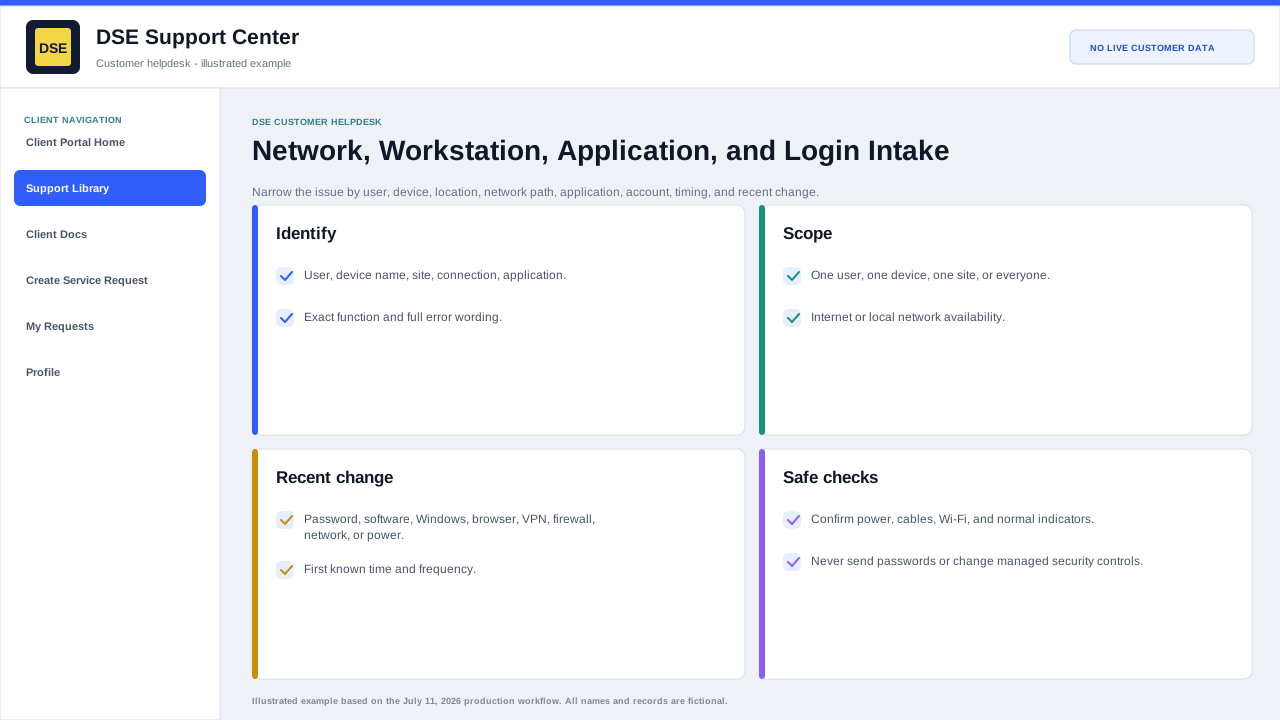
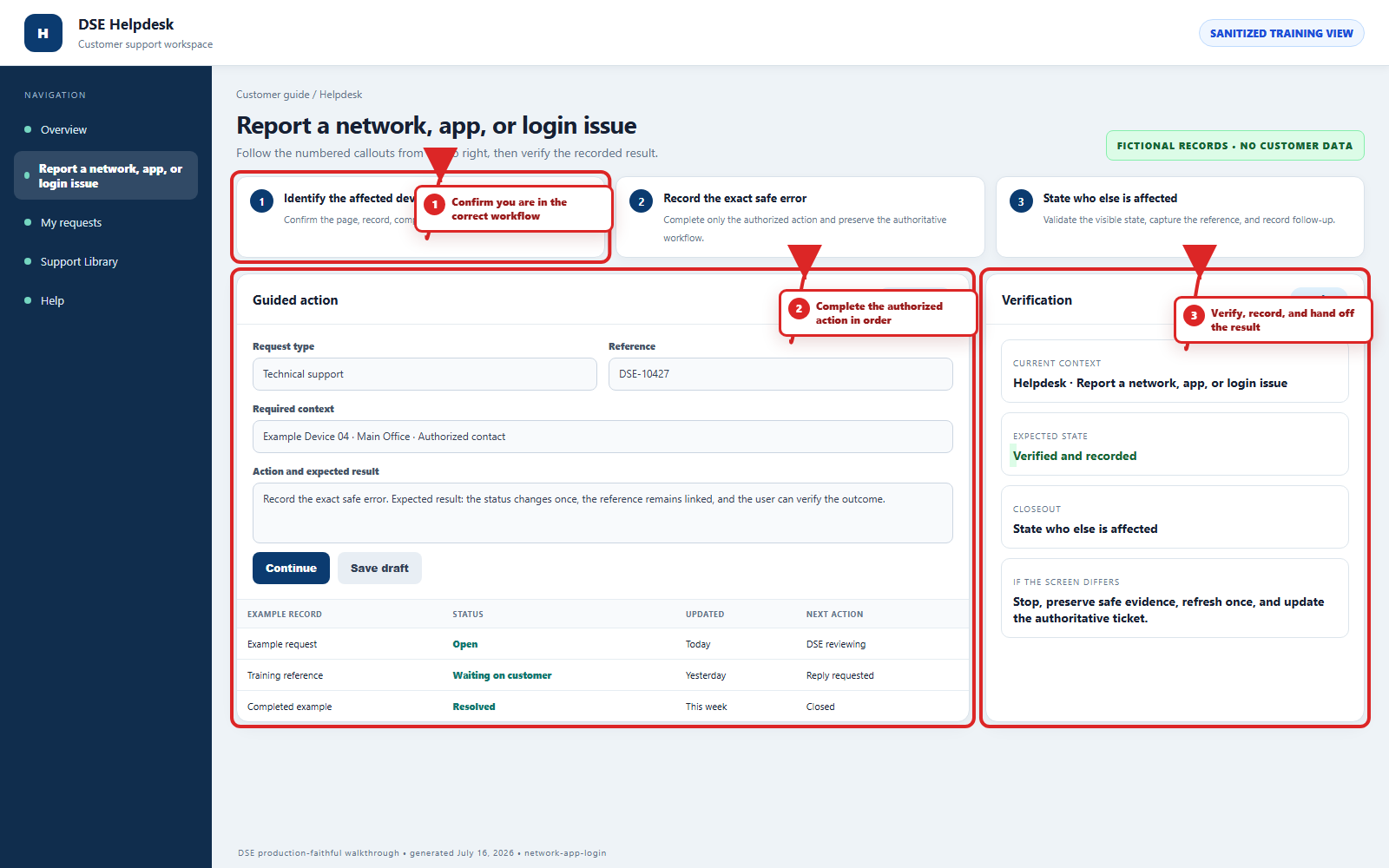
- Include the computer name, user, location, exact status, start time, recent change, business impact, and a safe screenshot when available.
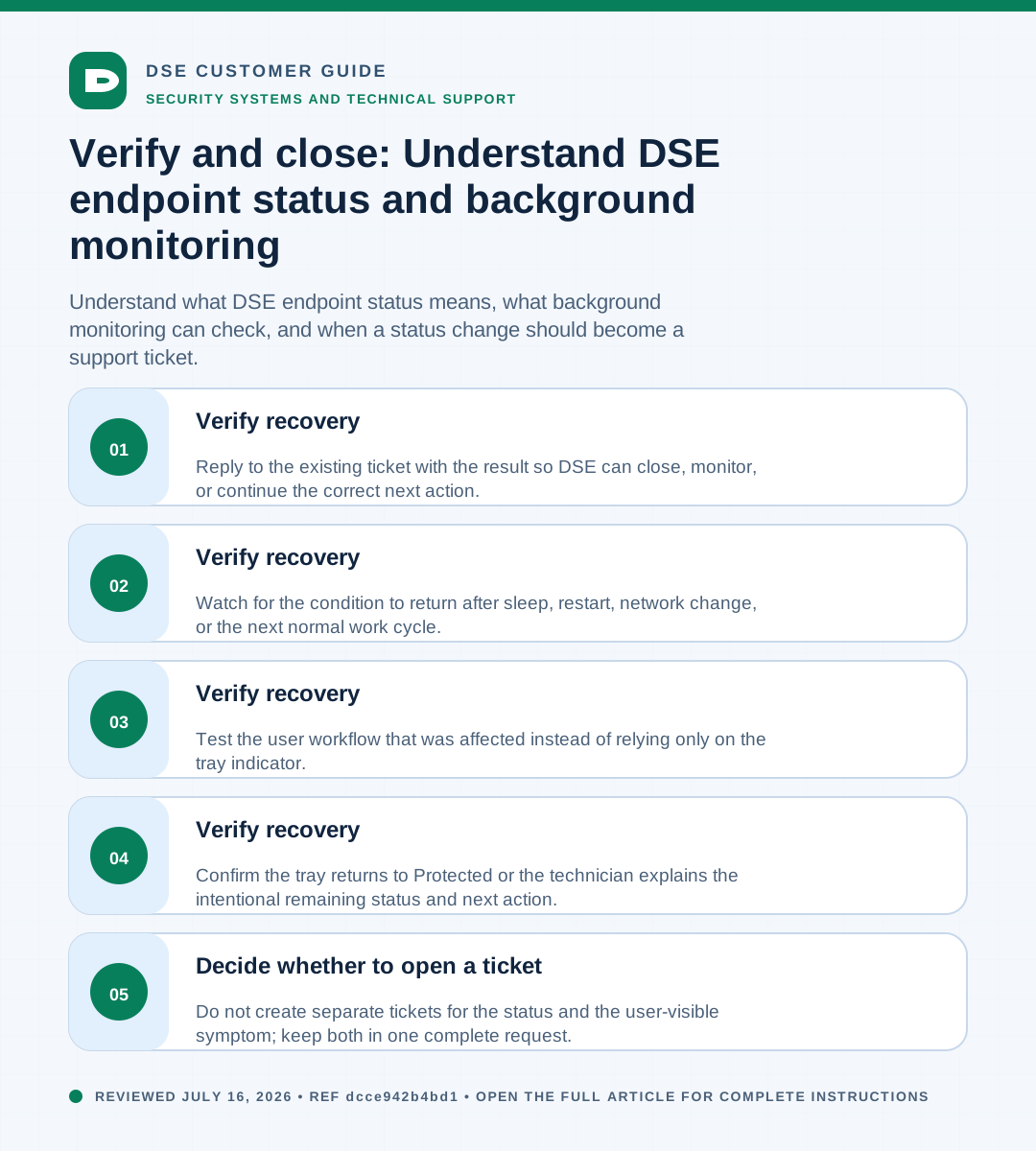
- Do not create separate tickets for the status and the user-visible symptom; keep both in one complete request.
04Verify recovery
- Confirm the tray returns to Protected or the technician explains the intentional remaining status and next action.
- Test the user workflow that was affected instead of relying only on the tray indicator.
- Watch for the condition to return after sleep, restart, network change, or the next normal work cycle.
- Reply to the existing ticket with the result so DSE can close, monitor, or continue the correct next action.
Need a person?
Contact DSE Support →
Open a service request with the details you have.
Include the site, affected device or user, exact error, when it started, urgency, and screenshots when available.