

Security systems
Alarm, Intrusion, and Intercom Issue Checklist
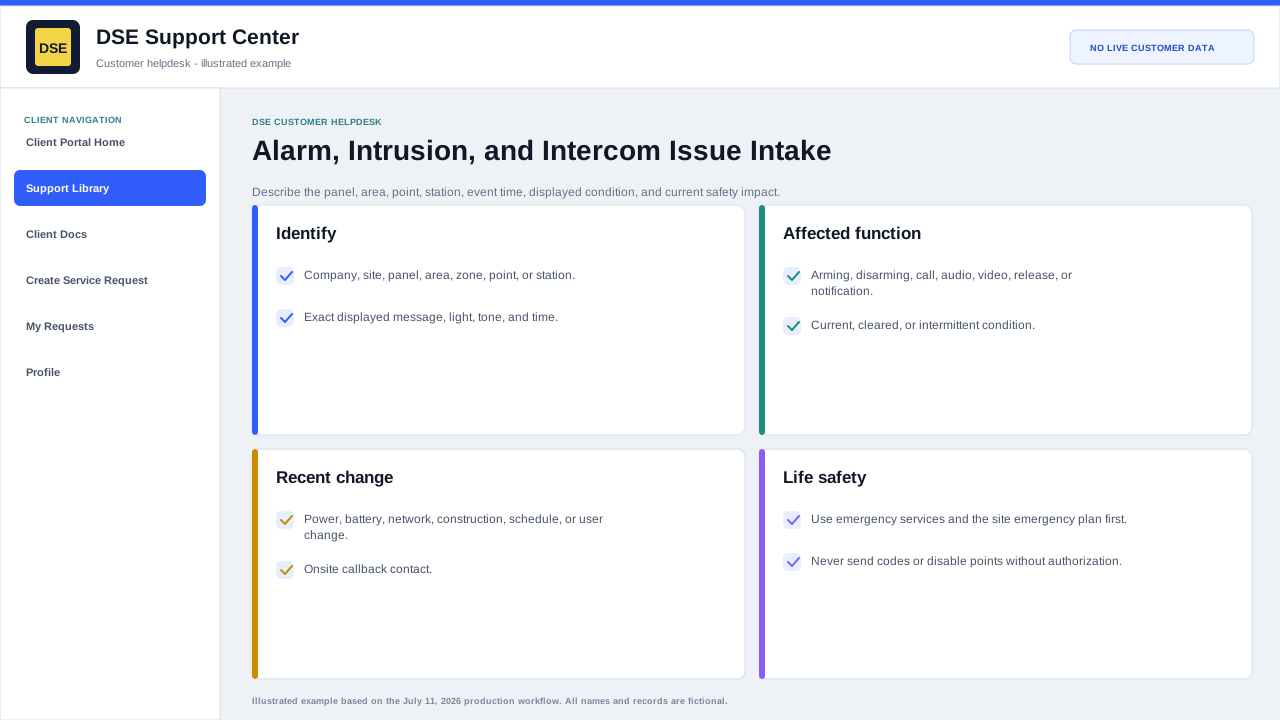
Describe the panel, area, point, device, event time, displayed condition, and current safety impact without exposing codes or performing an unapproved reset.
Production address
https://helpdesk.dsesecurity.com/
Confirm HTTPS and the exact domain before entering account or ticket information.
Visual walkthrough
Open any visual for a full-size reference
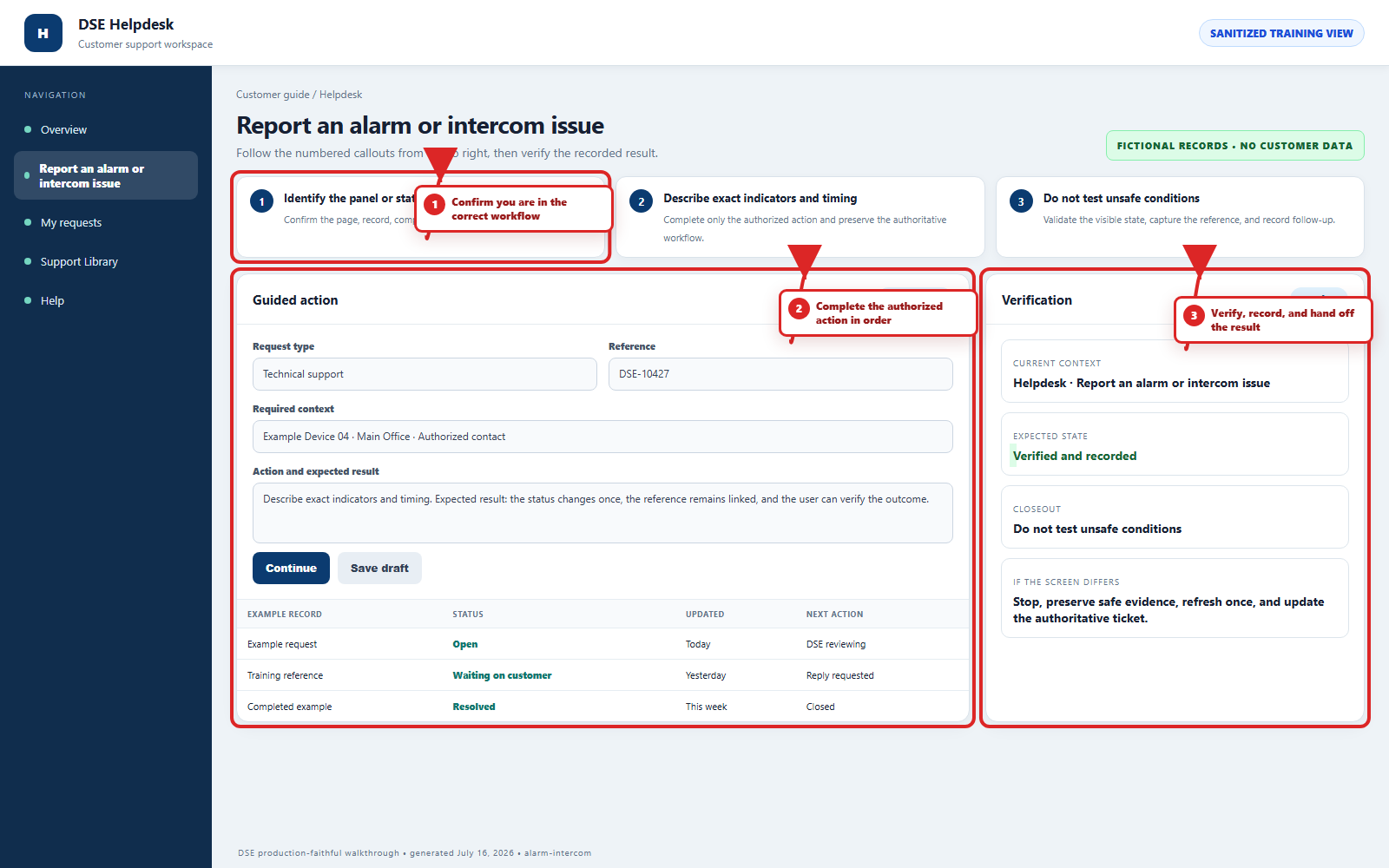
The annotated screenshot uses numbered red boxes and arrows. Read callouts 1, 2, and 3 in order, then return to the written steps below for the complete procedure.
 Open full size
 Open full size
 Open full size
1
Workflow section 1 of 3
Include these details
-
Company, site, building, panel, area, zone, point, intercom station, or device name.
-
The exact displayed message, indicator, tone, event time, and whether the condition is current or intermittent.
-
Whether arming, disarming, call initiation, audio, video, door release, notification, or monitoring is affected.
-
Any recent power, battery, network, phone, construction, schedule, user, or equipment change.
-
A safe callback contact who is currently at the site when onsite confirmation may be needed.
2
Workflow section 2 of 3
Do not include or attempt
-
Do not send alarm codes, duress codes, passwords, recovery codes, or programming credentials.
-
Do not disable points, silence a life-safety condition, open a panel, or reset equipment unless an approved procedure or DSE technician directs you.
-
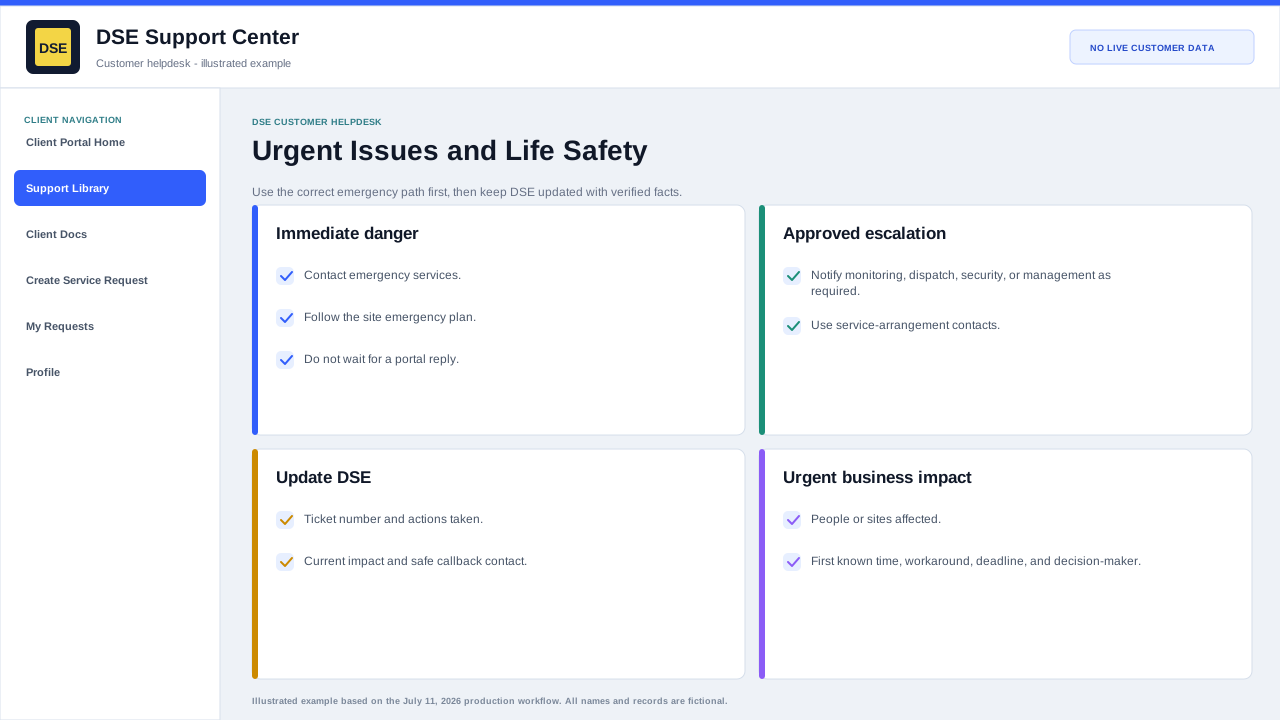
Follow the site emergency plan and contact emergency services for immediate danger, fire, medical, duress, or life-safety conditions.
-
Tell DSE which emergency or monitoring contacts have already been notified.
3
Workflow section 3 of 3
Finish the troubleshooting intake
-
Review the site, device, user, example time, scope, impact, and safe checks for accuracy.
-
Remove secrets and unrelated customer information from every note, screenshot, photo, and attachment.
-
Submit one complete request and keep the DSE-###### confirmation number.
-
Reply on that ticket with meaningful changes instead of opening a duplicate request.
Final verification
Before you leave this guide
- Confirm context. Recheck the DSE domain, signed-in account, company or site, ticket number, device, and request type shown on screen.
- Confirm the result. Perform one harmless verification and make sure the visible status matches what you expected.
- Keep the reference. Save the DSE-###### ticket number, confirmation, or other safe reference needed to continue the same conversation.
- Stop on a mismatch. Do not repeat a high-impact action. Preserve a safe screenshot, note the time and exact error, refresh once, and update or open the correct DSE ticket.
Content owner: DSE Service Operations. Production reviewed July 16, 2026. Examples and visuals are customer-safe and use fictional data.