

Mobile access
Use the Client Portal on Phones, Tablets, and Browsers
Use a current browser, normal text scaling, and the production HTTPS site. Save ticket work before switching apps or losing connectivity.
Production address
https://helpdesk.dsesecurity.com/
Confirm HTTPS and the exact domain before entering account or ticket information.
Visual walkthrough
Open any visual for a full-size reference
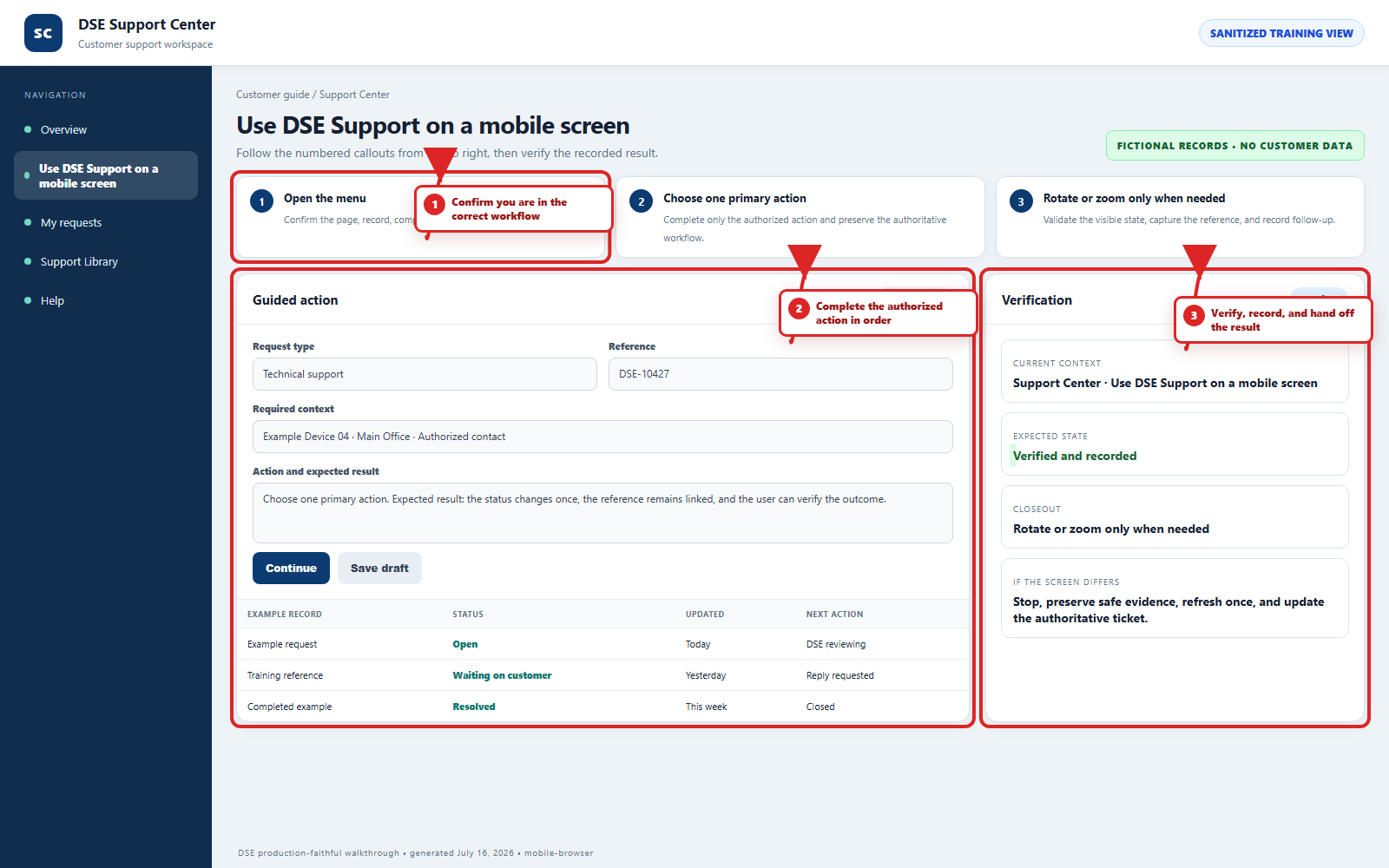
The annotated screenshot uses numbered red boxes and arrows. Read callouts 1, 2, and 3 in order, then return to the written steps below for the complete procedure.
 Open full size
 Open full size
 Open full size
1
Workflow section 1 of 4
Mobile connection checklist
-
Open the production address in the full browser instead of an embedded email or messaging-app browser when sign-in behaves unexpectedly.
-
Keep browser zoom and text size near the device default, and rotate for wide ticket tables.
-
Review photos and files before upload because a mobile picker can expose recent unrelated items.
-
Submit or save work before switching networks, locking the device, or leaving the browser.
-
Use a desktop browser when a dense account or ticket screen cannot show enough context safely.
2
Workflow section 2 of 4
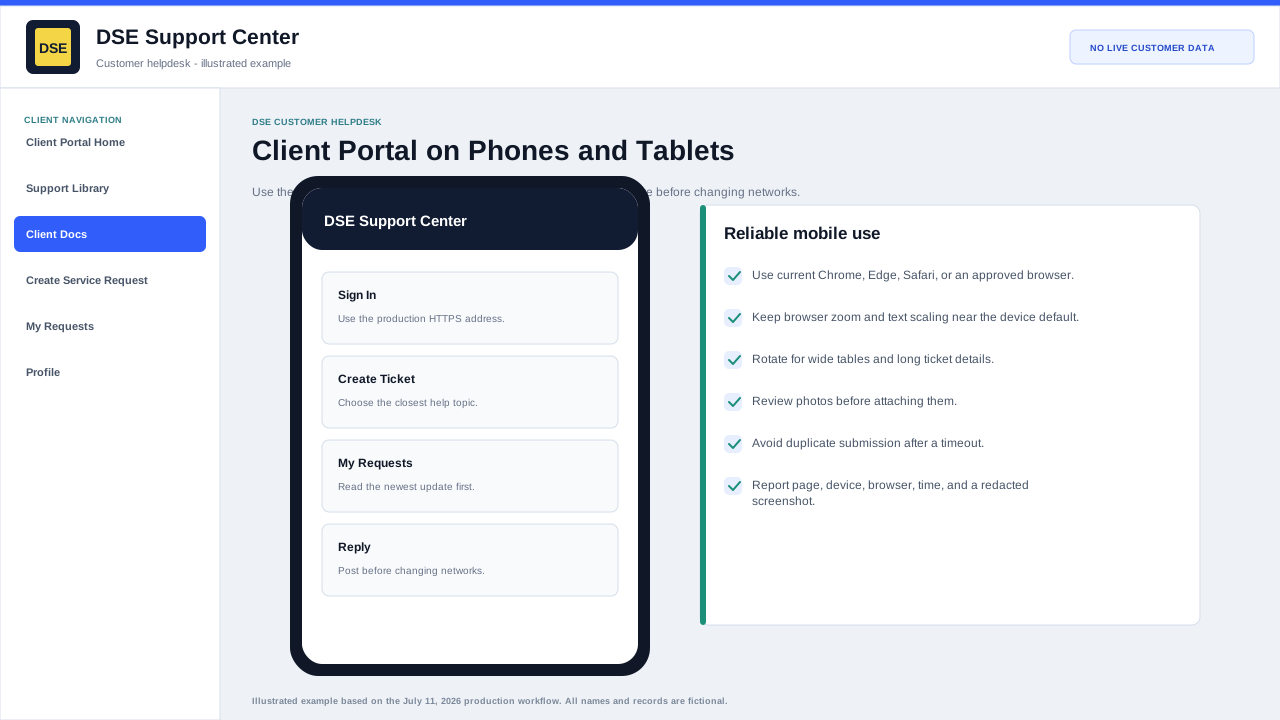
Reliable mobile use
-
Use the current version of Chrome, Edge, Safari, or another browser supported by your organization.
-
Sign in through the production DSE HTTPS address and avoid links that show a certificate warning or unexpected domain.
-
Rotate the device for wide tables or long ticket details when needed.
-
Choose photos or files only after confirming they contain no unrelated or sensitive information.
-
Post the reply before changing networks, closing the browser, or switching away for a long time.
3
Workflow section 3 of 4
If the page does not fit or respond
-
Return browser zoom to normal and try the device default text size.
-
Refresh once and sign in again if the session expired; avoid repeatedly submitting the same form.
-
Try a private tab only for diagnosis because it will not keep your normal signed-in session.
-
Capture the page name, device, browser version, time, and a redacted screenshot.
-
Email helpdesk@detection-systems.com with the details if the portal prevents ticket creation.
4
Workflow section 4 of 4
Confirm you reached the correct next step
-
Confirm the browser still shows HTTPS and the expected DSE helpdesk domain.
-
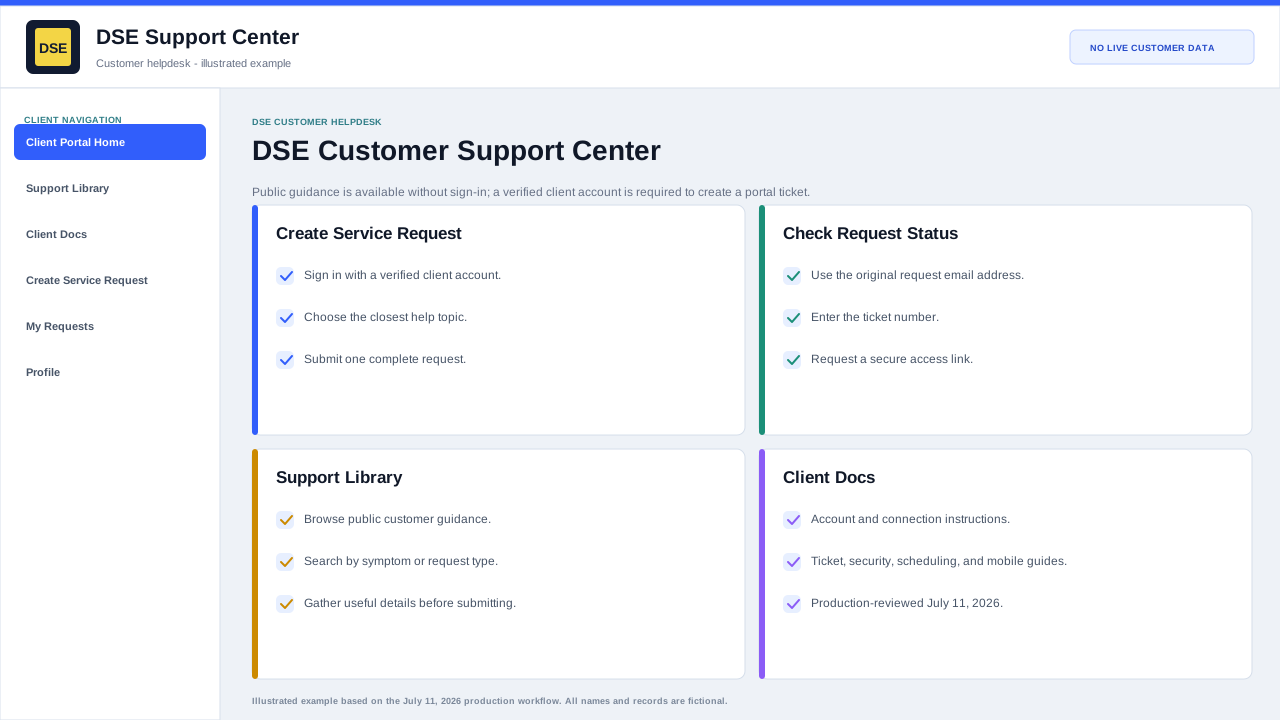
Confirm you are on the correct public guide, sign-in, ticket, or status page for the action you need.
-
Keep the DSE-###### ticket number whenever a request is created.
-
Return to Client Docs and choose another guide if the page does not match your goal.
Final verification
Before you leave this guide
- Confirm context. Recheck the DSE domain, signed-in account, company or site, ticket number, device, and request type shown on screen.
- Confirm the result. Perform one harmless verification and make sure the visible status matches what you expected.
- Keep the reference. Save the DSE-###### ticket number, confirmation, or other safe reference needed to continue the same conversation.
- Stop on a mismatch. Do not repeat a high-impact action. Preserve a safe screenshot, note the time and exact error, refresh once, and update or open the correct DSE ticket.
Content owner: DSE Service Operations. Production reviewed July 16, 2026. Examples and visuals are customer-safe and use fictional data.