

Self-service
Support Library
The Support Library gives clients a clean starting point for choosing the right support path before opening a request.
Production address
https://helpdesk.dsesecurity.com/
Confirm HTTPS and the exact domain before entering account or ticket information.
Visual walkthrough
Open any visual for a full-size reference
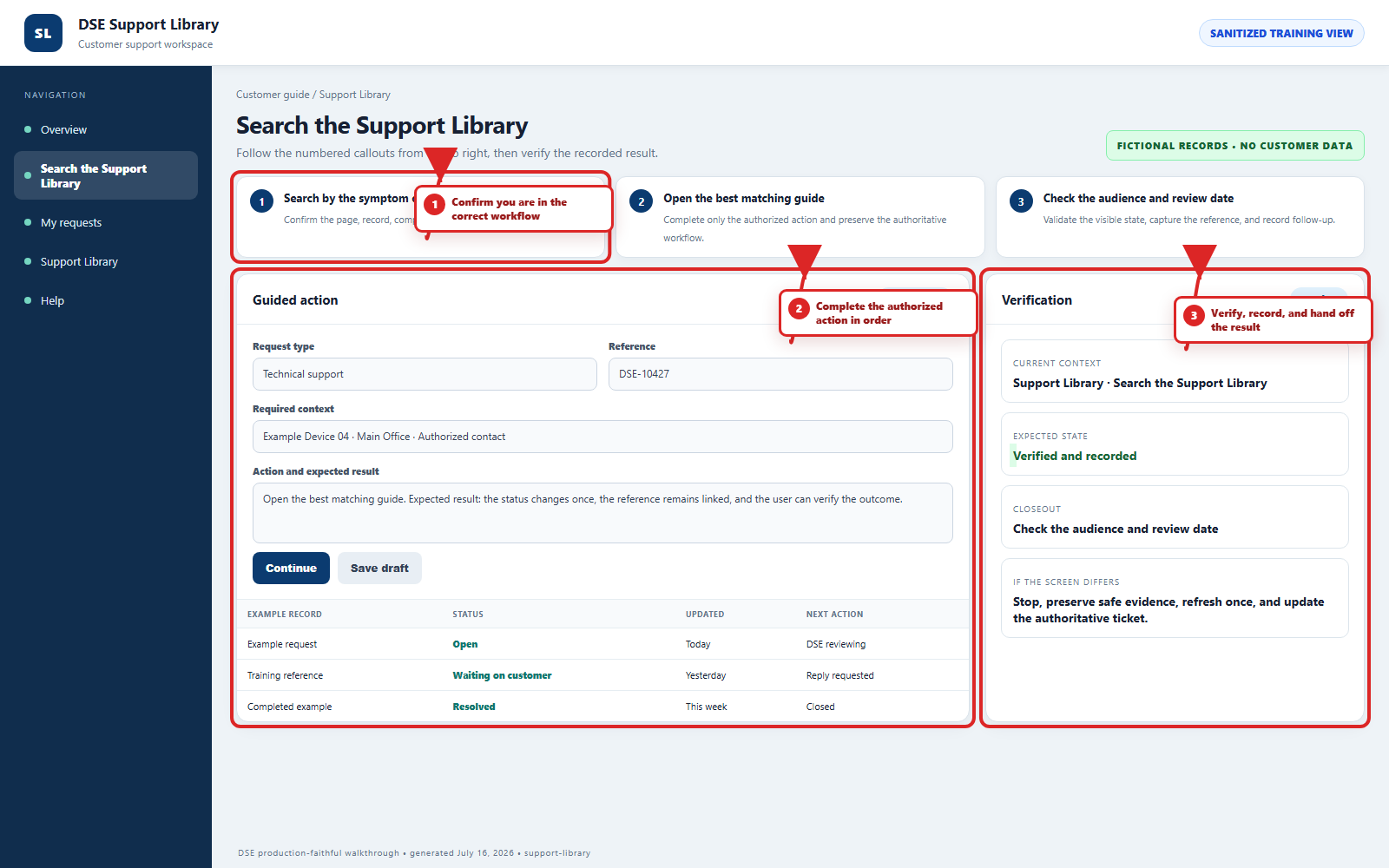
The annotated screenshot uses numbered red boxes and arrows. Read callouts 1, 2, and 3 in order, then return to the written steps below for the complete procedure.
 Open full size
 Open full size
 Open full size
1
Workflow section 1 of 4
Search the library step by step
-
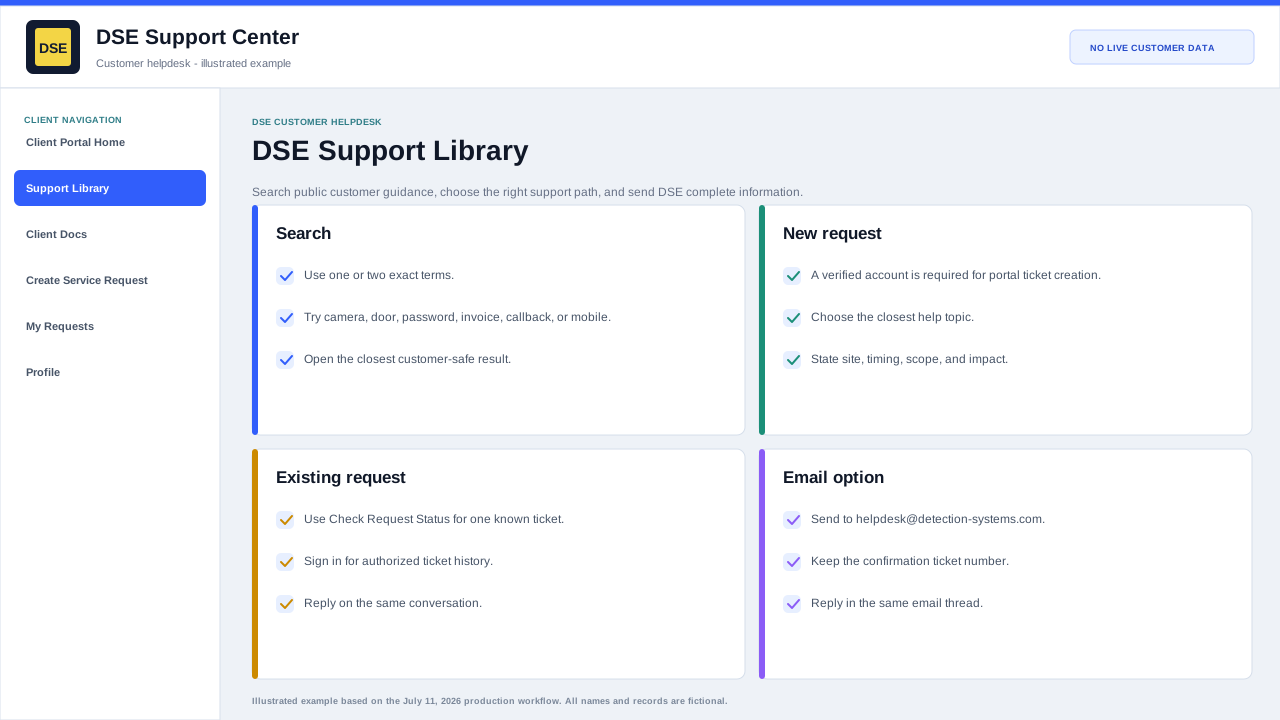
Start with one or two exact terms such as camera offline, door access, password reset, invoice, callback, or mobile.
-
Open the closest category and confirm the article is customer-facing and matches the system or request you are handling.
-
Use the checklist to gather safe evidence, then create or update the ticket from the related link.
-
If no result matches, open a ticket and describe the symptom rather than guessing an internal cause.
2
Workflow section 2 of 4
Use the Support Library to choose a path
-
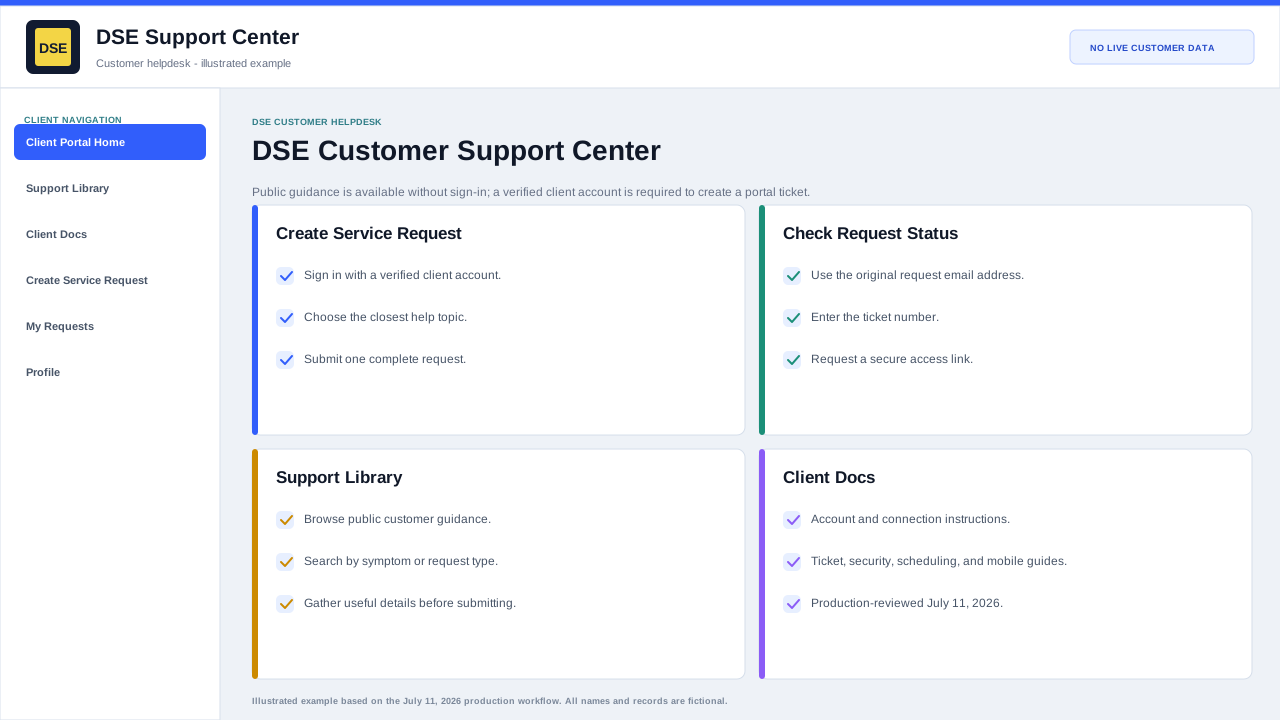
Use Open a ticket when something is broken, offline, intermittent, or needs DSE review.
-
Use Check status when you already have a ticket number or access link.
-
Use Sign in when you need private replies or your request history.
-
Use the search box for common support areas such as cameras, access control, network, VPN, billing, quotes, or projects.
3
Workflow section 3 of 4
Why this helps
-
Choosing the closest support path helps DSE route requests faster.
-
The Support Library is public and does not require a login.
-
No internal DSE staff documentation is shown here.
4
Workflow section 4 of 4
Confirm you reached the correct next step
-
Confirm the browser still shows HTTPS and the expected DSE helpdesk domain.
-
Confirm you are on the correct public guide, sign-in, ticket, or status page for the action you need.
-
Keep the DSE-###### ticket number whenever a request is created.
-
Return to Client Docs and choose another guide if the page does not match your goal.
Final verification
Before you leave this guide
- Confirm context. Recheck the DSE domain, signed-in account, company or site, ticket number, device, and request type shown on screen.
- Confirm the result. Perform one harmless verification and make sure the visible status matches what you expected.
- Keep the reference. Save the DSE-###### ticket number, confirmation, or other safe reference needed to continue the same conversation.
- Stop on a mismatch. Do not repeat a high-impact action. Preserve a safe screenshot, note the time and exact error, refresh once, and update or open the correct DSE ticket.
Content owner: DSE Service Operations. Production reviewed July 16, 2026. Examples and visuals are customer-safe and use fictional data.