

Request progress
Ticket Status, Ownership, and Timing
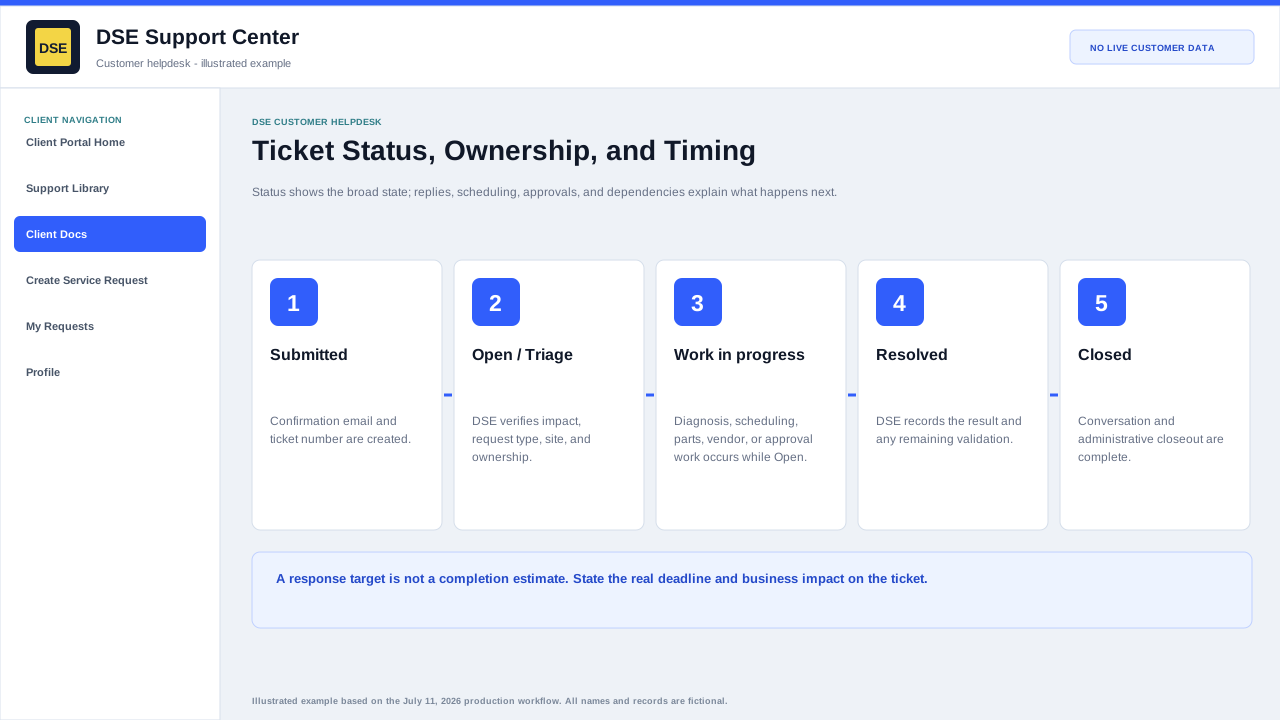
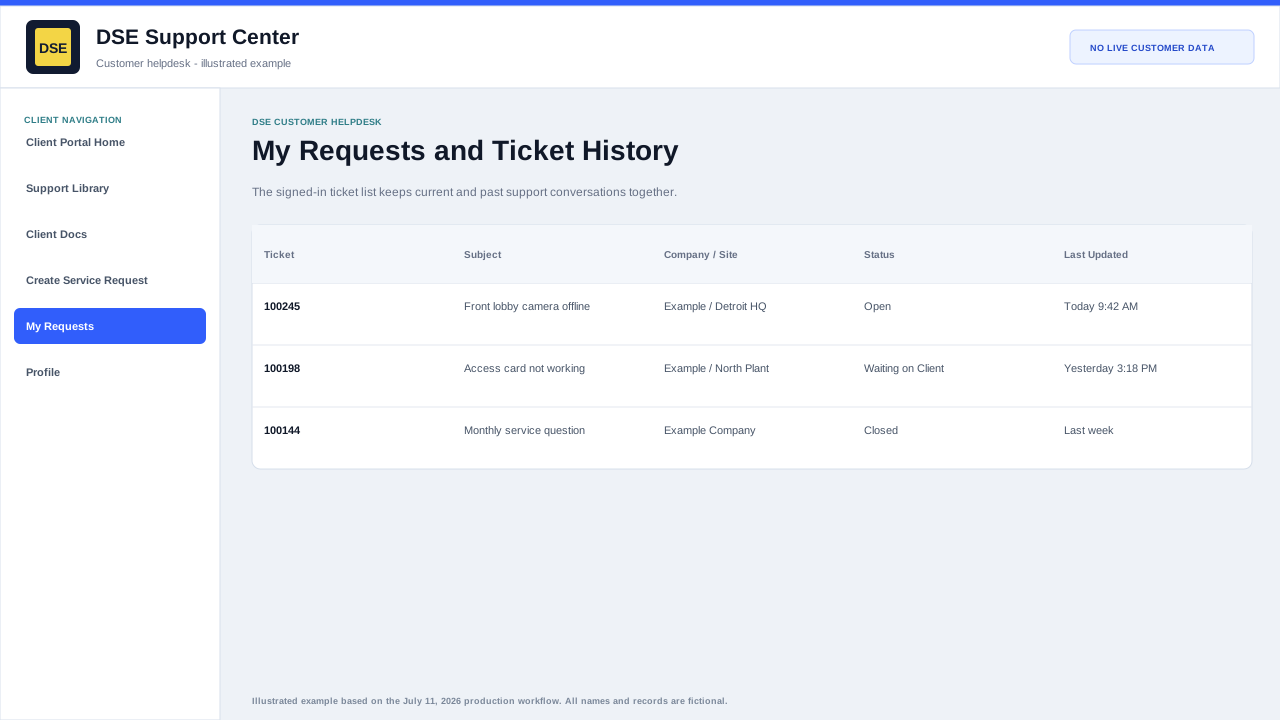
Production tickets use Open, Resolved, Closed, Archived, and Deleted statuses. Replies, assignment, scheduling, and dependencies provide the rest of the workflow context.
Production address
https://helpdesk.dsesecurity.com/
Confirm HTTPS and the exact domain before entering account or ticket information.
Visual walkthrough
Open any visual for a full-size reference
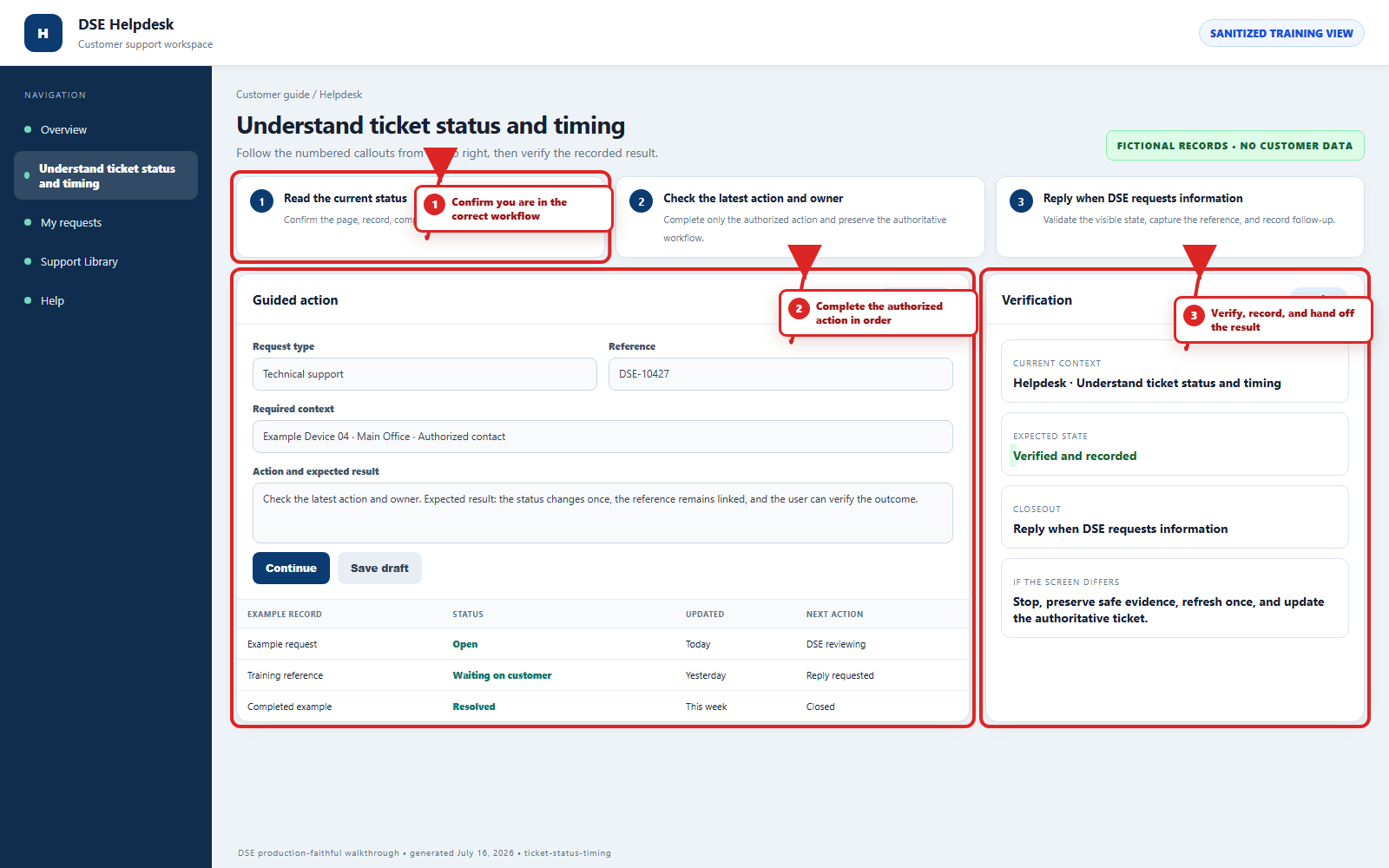
The annotated screenshot uses numbered red boxes and arrows. Read callouts 1, 2, and 3 in order, then return to the written steps below for the complete procedure.
 Open full size
 Open full size
 Open full size
1
Workflow section 1 of 3
Customer-relevant statuses
-
Open means the request is active and may be in triage, assigned work, scheduling, vendor work, parts, approval, or waiting for information.
-
Resolved means DSE has recorded a resolution or completed the requested work, subject to any remaining confirmation or closeout.
-
Closed means the support conversation and administrative closeout are complete.
-
Archived and Deleted are administrative retention states and normally do not represent active work.
2
Workflow section 2 of 3
Response and completion timing
-
DSE confirms the applicable department, priority, schedule, SLA plan, agreement, and business impact during triage.
-
A response target is not the same as a completion estimate.
-
Parts, site access, customer approvals, vendors, project scope, and scheduling can change completion timing.
-
State any deadline and business impact on the ticket and ask DSE to confirm the plan.
-
Do not rely on a generic help article as a contractual service commitment.
3
Workflow section 3 of 3
Finish and verify the customer action
-
Wait for the confirmation page, updated conversation, email, or account message before repeating the action.
-
Confirm the customer, company, site, DSE-###### ticket, and visible status are the ones you intended.
-
Save the confirmation or reply on the same ticket when more information is needed.
-
Contact DSE immediately if account or ticket visibility includes unrelated customer information.
Final verification
Before you leave this guide
- Confirm context. Recheck the DSE domain, signed-in account, company or site, ticket number, device, and request type shown on screen.
- Confirm the result. Perform one harmless verification and make sure the visible status matches what you expected.
- Keep the reference. Save the DSE-###### ticket number, confirmation, or other safe reference needed to continue the same conversation.
- Stop on a mismatch. Do not repeat a high-impact action. Preserve a safe screenshot, note the time and exact error, refresh once, and update or open the correct DSE ticket.
Content owner: DSE Service Operations. Production reviewed July 16, 2026. Examples and visuals are customer-safe and use fictional data.