

Remote clipboard
Use Copy and Paste Safely During Remote Support
Remote clipboard text crosses only when the DSE technician uses Paste to remote or Copy from remote through the secure relay; ordinary local copy and paste does not automatically cross the session boundary.
Production address
https://helpdesk.dsesecurity.com/
Confirm HTTPS and the exact domain before entering account or ticket information.
Visual walkthrough
Open any visual for a full-size reference
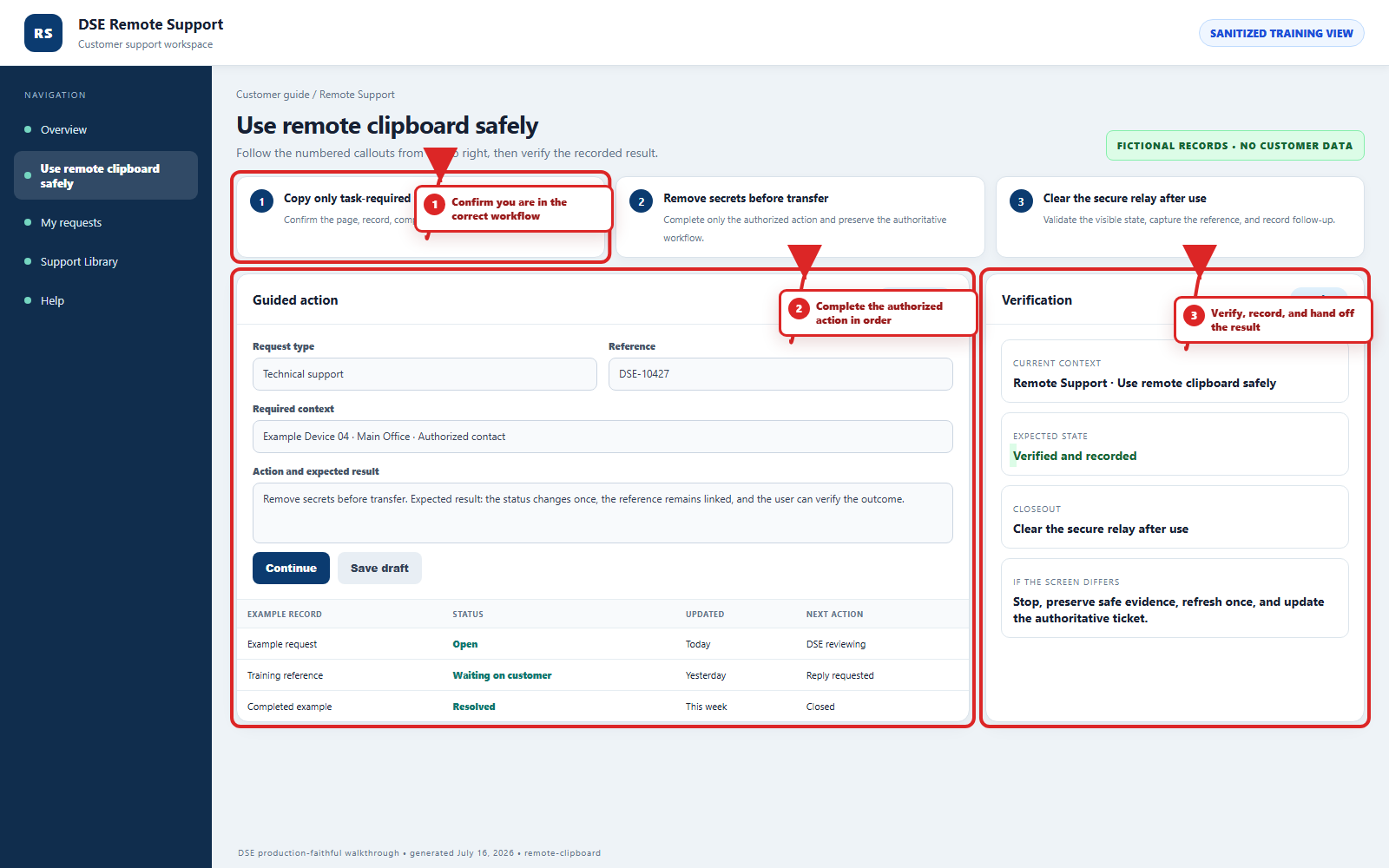
The annotated screenshot uses numbered red boxes and arrows. Read callouts 1, 2, and 3 in order, then return to the written steps below for the complete procedure.
 Open full size
 Open full size
 Open full size
1
Workflow section 1 of 7
Understand the secure clipboard boundary
-
Ordinary copy and paste on either computer remains on that computer unless the DSE technician explicitly uses a remote clipboard control.
-
Paste to remote transfers prepared clipboard text toward the remote computer through the secure relay.
-
Copy from remote transfers prepared remote clipboard text back through the secure relay.
-
Clear secure relay removes temporary relay clipboard content after the authorized transfer.
-
Use the ticket attachment process for files; the secure text relay is not a substitute for approved file transfer.
2
Workflow section 2 of 7
Prepare the text or value
-
Confirm the text is needed for the active DSE ticket and belongs to the affected customer, site, and system.
-
Remove passwords, one-time codes, private keys, payment details, personal information, and unrelated customer data.
-
Use the smallest useful text selection instead of copying an entire email, document, log, or spreadsheet.
-
Tell the technician what you intend to transfer and the approved destination before the relay control is used.
3
Workflow section 3 of 7
Use Paste to remote
-
The technician copies only the approved text on the local support side.
-
The technician confirms the intended remote computer and destination before selecting Paste to remote.
-
The technician selects Paste to remote to send the prepared text through the secure relay to the remote session.
-
The technician and customer review the remote result before saving, submitting, or running anything, especially commands, paths, addresses, and account names.
4
Workflow section 4 of 7
Use Copy from remote
-
The technician selects and copies only the approved text on the remote computer.
-
The technician confirms the intended local destination before selecting Copy from remote.
-
The technician selects Copy from remote to retrieve the prepared text through the secure relay.
-
The technician reviews the received text and places it only in the approved support destination.
5
Workflow section 5 of 7
Protect credentials and security prompts
-
Type your own password or one-time code only into the verified prompt when the support plan requires it.
-
Do not paste credentials into chat, ticket replies, command windows, notes, or fields the technician did not identify.
-
Treat an unexpected request for a password, recovery code, or security secret as a reason to pause and verify the technician through the ticket.
-
Use approved password-reset and privileged-access processes instead of sharing a reusable secret.
6
Workflow section 6 of 7
Clear the secure relay
-
The technician selects Clear secure relay immediately after the approved transfer is complete.
-
Clear or replace sensitive local and remote clipboard text when either side used a normal clipboard while preparing the transfer.
-
Close temporary notes or windows used only for the transfer.
-
Ask the technician to confirm the secure relay has been cleared and no additional text transfer is needed.
-
Record only the business result in the ticket; do not paste the secret or sensitive value into the ticket history.
7
Workflow section 7 of 7
Finish and verify endpoint support
-
Confirm the endpoint status, remote-session state, and original symptom after the approved action.
-
Save customer work, have the technician select Clear secure relay after clipboard transfer, and lock Windows when stepping away.
-
Keep all follow-up on the same DSE-###### ticket for the same issue.
-
Report unexpected remote activity, missing tray status, or a failed validation immediately.
Final verification
Before you leave this guide
- Confirm context. Recheck the DSE domain, signed-in account, company or site, ticket number, device, and request type shown on screen.
- Confirm the result. Perform one harmless verification and make sure the visible status matches what you expected.
- Keep the reference. Save the DSE-###### ticket number, confirmation, or other safe reference needed to continue the same conversation.
- Stop on a mismatch. Do not repeat a high-impact action. Preserve a safe screenshot, note the time and exact error, refresh once, and update or open the correct DSE ticket.
Content owner: DSE Service Operations. Production reviewed July 16, 2026. Examples and visuals are customer-safe and use fictional data.