

Signed-in clients
My Requests and Ticket History
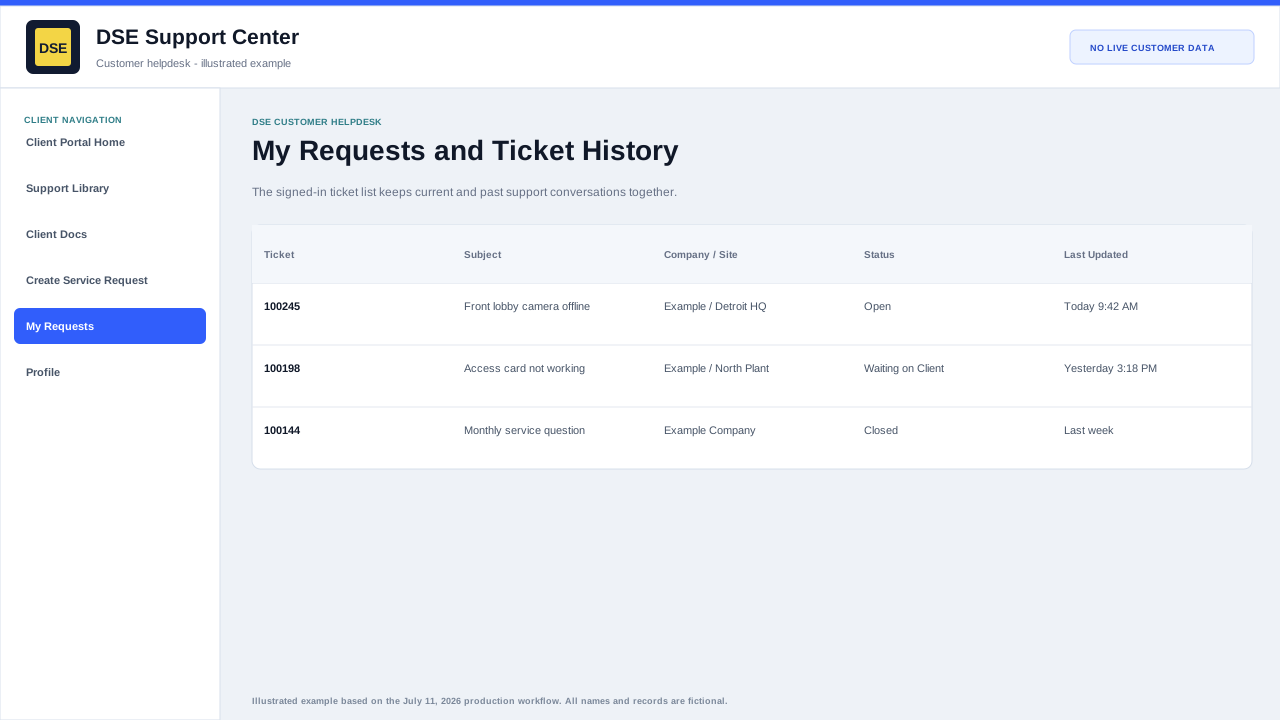
Signed-in clients can use My Requests to review ticket history, see current status, and open ticket details.
Production address
https://helpdesk.dsesecurity.com/
Confirm HTTPS and the exact domain before entering account or ticket information.
Visual walkthrough
Open any visual for a full-size reference
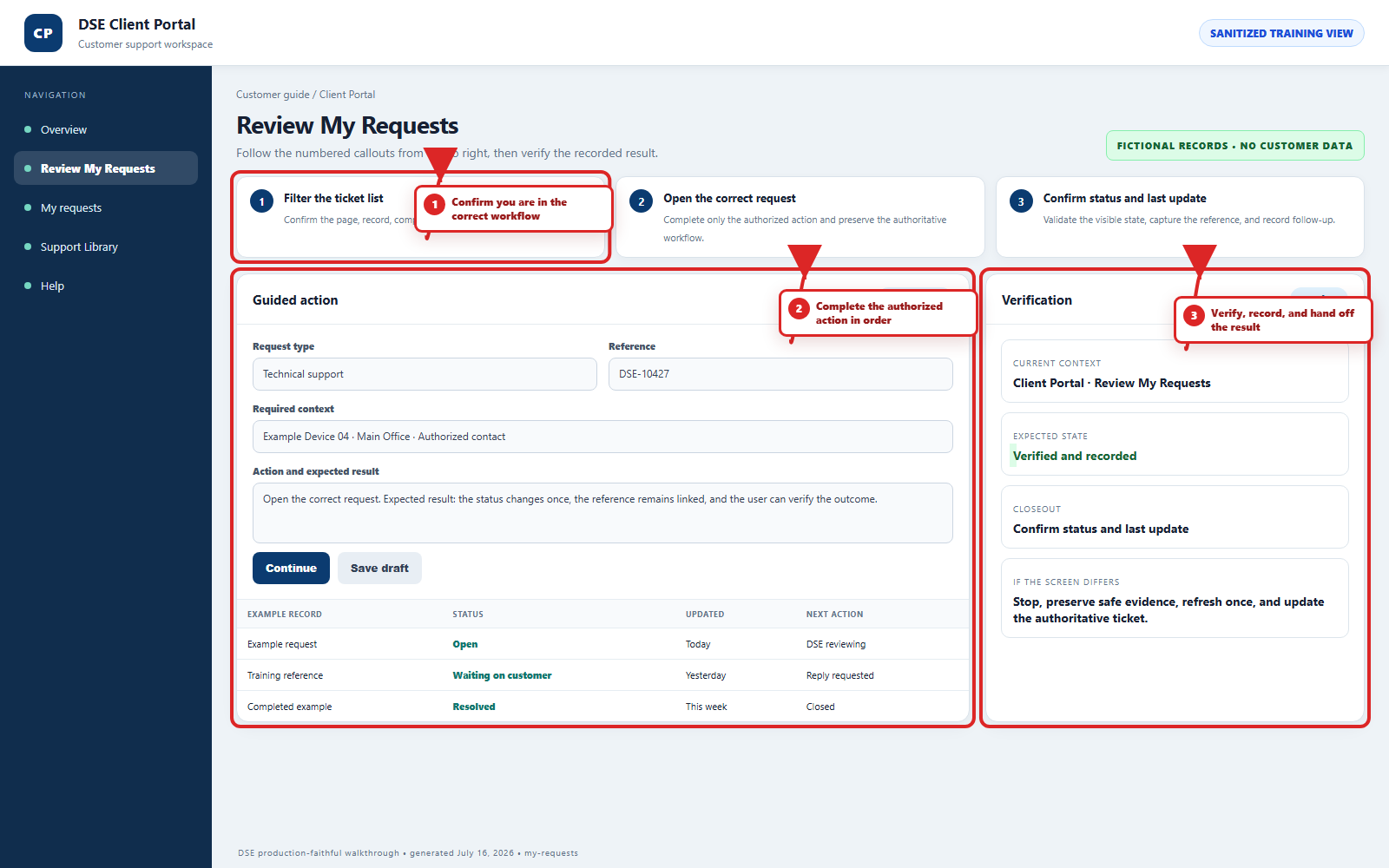
The annotated screenshot uses numbered red boxes and arrows. Read callouts 1, 2, and 3 in order, then return to the written steps below for the complete procedure.
 Open full size
 Open full size
 Open full size
1
Workflow section 1 of 4
Review requests efficiently
-
Start with tickets showing recent updates or a request for customer information.
-
Confirm ticket number, subject, company or site, status, and last update before opening the conversation.
-
Search prior closed requests for history, but open a new ticket when the new issue is unrelated.
-
Report missing or unexpected tickets to DSE instead of creating duplicate accounts or changing company information yourself.
2
Workflow section 2 of 4
What the list shows
-
Ticket number and subject.
-
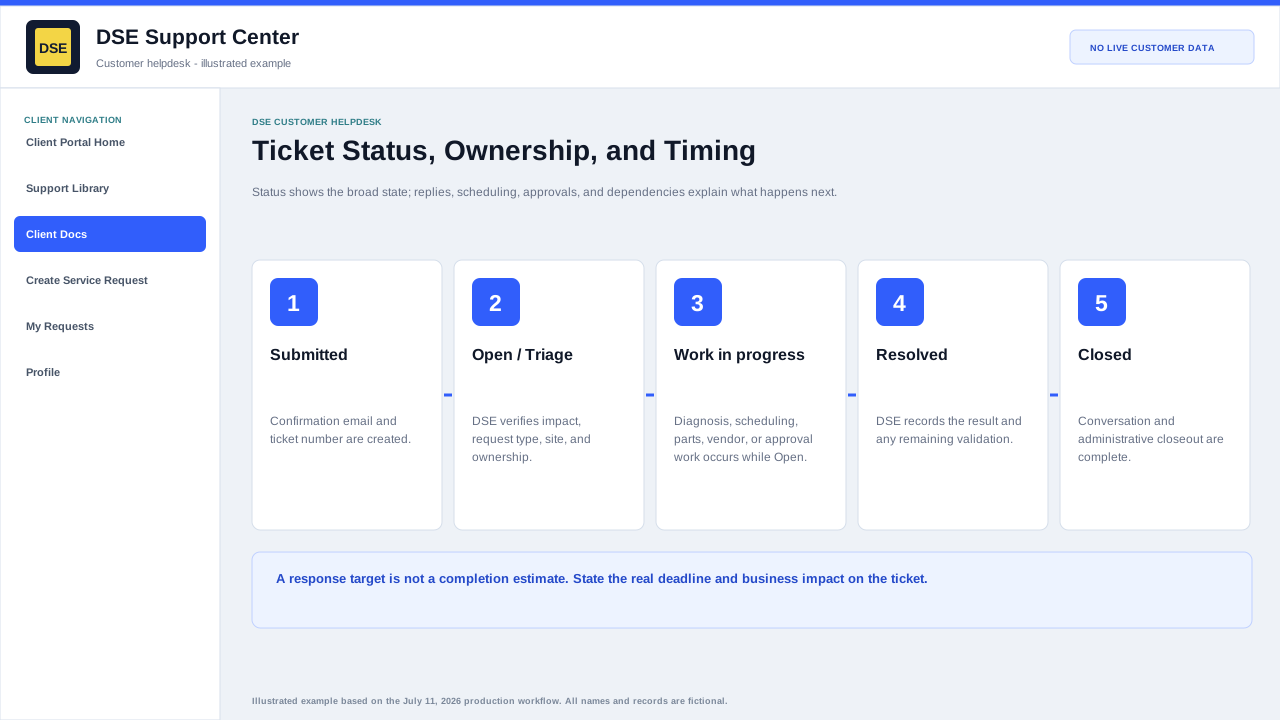
Current production status, such as Open, Resolved, or Closed.
-
Last update time so you can quickly see recent activity.
-
Links to open the full ticket conversation.
3
Workflow section 3 of 4
How to use it
-
Sign in to the client portal.
-
Open My Requests or Tickets from the client navigation.
-
Select a ticket number or subject to review the conversation.
-
Open a new ticket if the request is unrelated to an existing issue.
4
Workflow section 4 of 4
Finish and verify the customer action
-
Wait for the confirmation page, updated conversation, email, or account message before repeating the action.
-
Confirm the customer, company, site, DSE-###### ticket, and visible status are the ones you intended.
-
Save the confirmation or reply on the same ticket when more information is needed.
-
Contact DSE immediately if account or ticket visibility includes unrelated customer information.
Final verification
Before you leave this guide
- Confirm context. Recheck the DSE domain, signed-in account, company or site, ticket number, device, and request type shown on screen.
- Confirm the result. Perform one harmless verification and make sure the visible status matches what you expected.
- Keep the reference. Save the DSE-###### ticket number, confirmation, or other safe reference needed to continue the same conversation.
- Stop on a mismatch. Do not repeat a high-impact action. Preserve a safe screenshot, note the time and exact error, refresh once, and update or open the correct DSE ticket.
Content owner: DSE Service Operations. Production reviewed July 16, 2026. Examples and visuals are customer-safe and use fictional data.