

Email support
Open a Ticket by Email
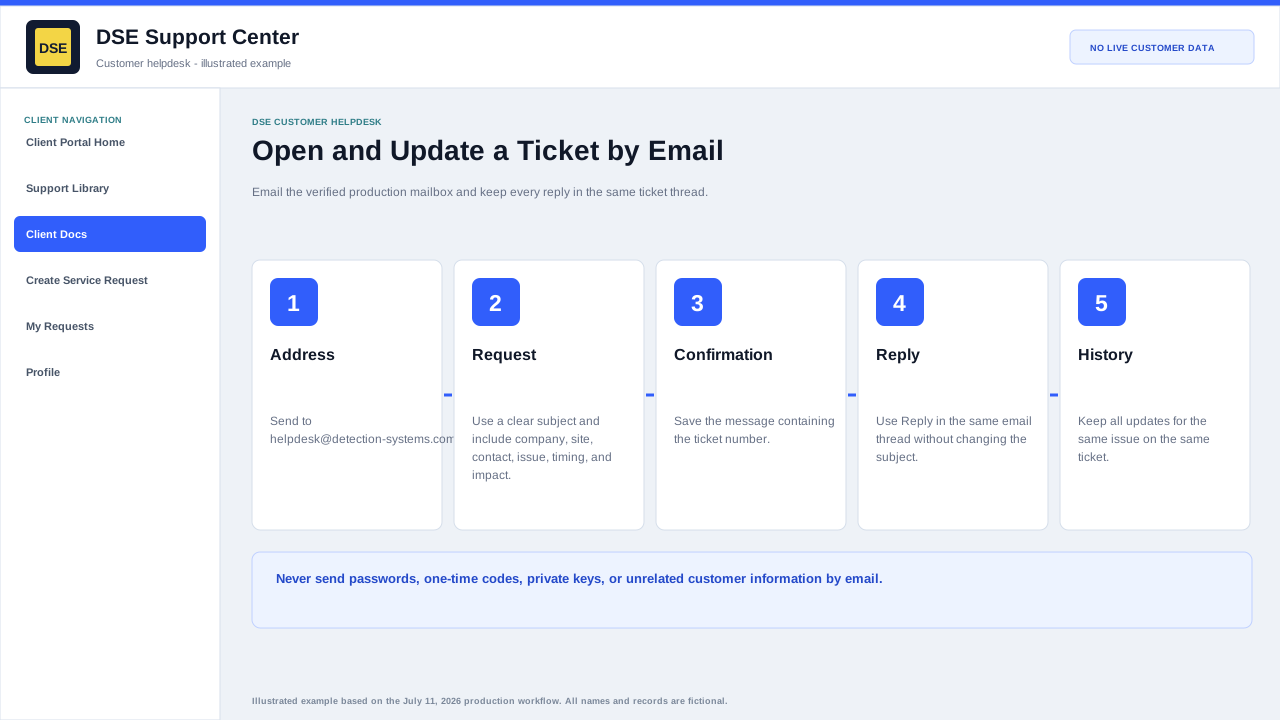
Clients can also open a support ticket through the verified production mailbox helpdesk@detection-systems.com.
Production address
https://helpdesk.dsesecurity.com/
Confirm HTTPS and the exact domain before entering account or ticket information.
Visual walkthrough
Open any visual for a full-size reference
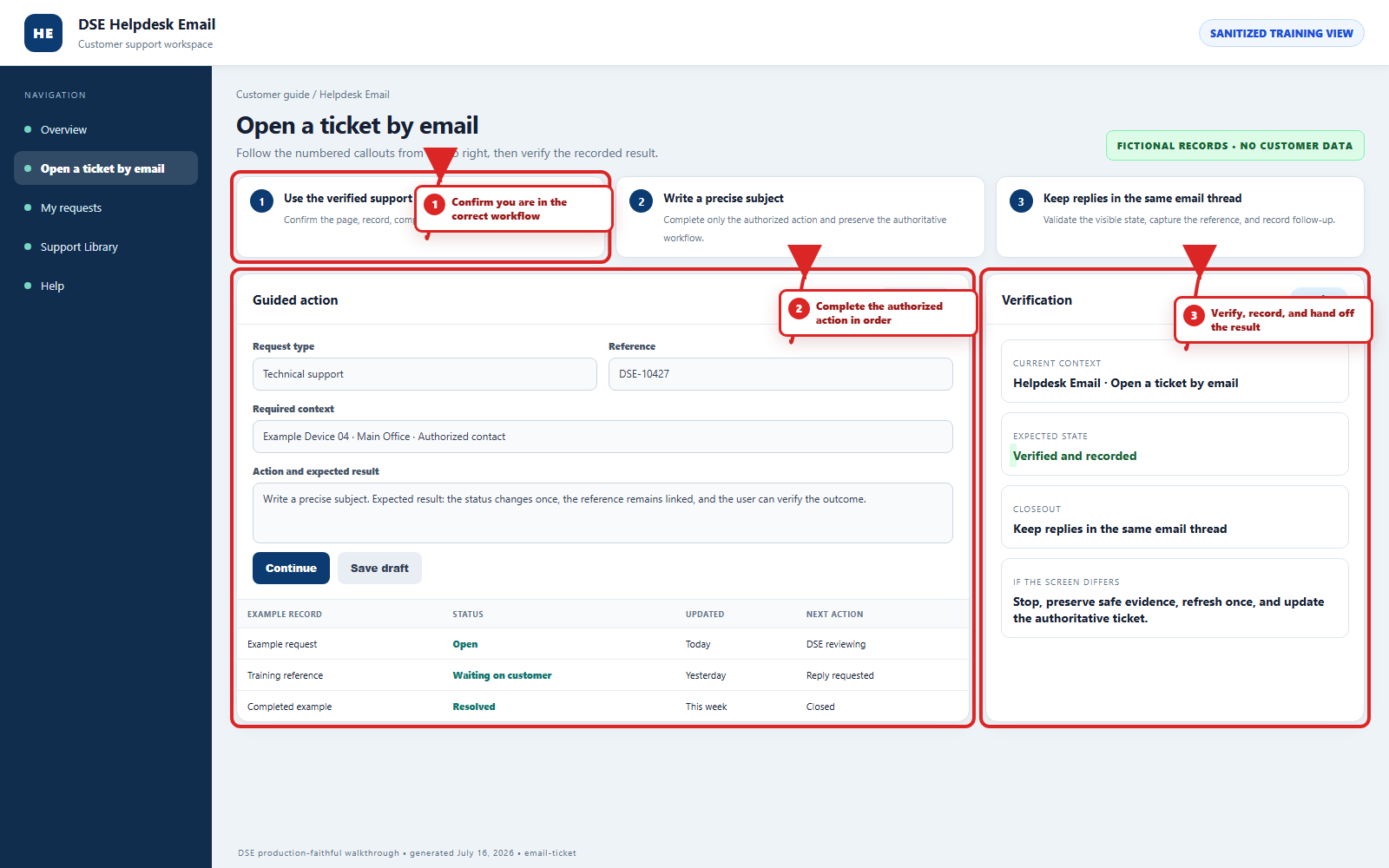
The annotated screenshot uses numbered red boxes and arrows. Read callouts 1, 2, and 3 in order, then return to the written steps below for the complete procedure.
 Open full size
 Open full size
 Open full size
Clients can open tickets by email
Email this verified production address to create a support ticket:
1
Workflow section 1 of 5
Send and maintain one email conversation
-
Address the first message to helpdesk@detection-systems.com and use a subject that states the site or system and symptom.
-
Send one complete request and keep the confirmation containing the ticket number.
-
Use Reply in the same email thread without changing the subject so the update stays on the existing ticket.
-
Start a separate email only when the new request is unrelated to the original ticket.
-
Never email passwords, one-time codes, private keys, API secrets, or unrelated customer information.
2
Workflow section 2 of 5
Verified production support email
3
Workflow section 3 of 5
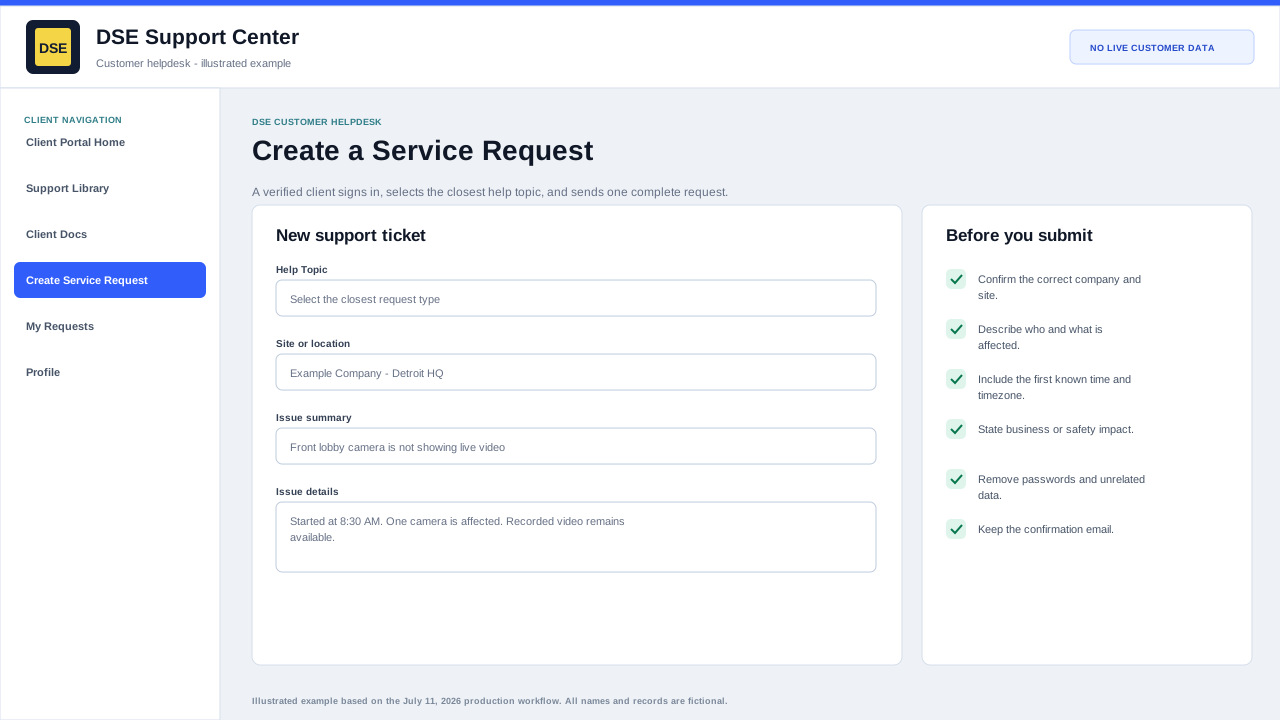
What to include in the email
-
A clear subject line that summarizes the issue.
-
Your name, company, site, and best callback number.
-
The affected system, device, user, camera, door, panel, workstation, or service.
-
When the issue started and whether it is still happening.
-
Screenshots, photos, error messages, or timestamps when available.
4
Workflow section 4 of 5
What happens next
-
The helpdesk creates a support ticket from your email.
-
DSE Support reviews and routes the request.
-
Replies from DSE will come through the ticket system.
-
Keep the ticket number from the confirmation email for future updates.
-
Reply in the same email thread so updates stay on the existing ticket.
5
Workflow section 5 of 5
Finish and verify the customer action
-
Wait for the confirmation page, updated conversation, email, or account message before repeating the action.
-
Confirm the customer, company, site, DSE-###### ticket, and visible status are the ones you intended.
-
Save the confirmation or reply on the same ticket when more information is needed.
-
Contact DSE immediately if account or ticket visibility includes unrelated customer information.
Final verification
Before you leave this guide
- Confirm context. Recheck the DSE domain, signed-in account, company or site, ticket number, device, and request type shown on screen.
- Confirm the result. Perform one harmless verification and make sure the visible status matches what you expected.
- Keep the reference. Save the DSE-###### ticket number, confirmation, or other safe reference needed to continue the same conversation.
- Stop on a mismatch. Do not repeat a high-impact action. Preserve a safe screenshot, note the time and exact error, refresh once, and update or open the correct DSE ticket.
Content owner: DSE Service Operations. Production reviewed July 16, 2026. Examples and visuals are customer-safe and use fictional data.