

Commercial lifecycle
Follow a Quote, Purchase Order, Order, and Delivery
Use the DSE helpdesk ticket as the communication record for quote questions, approvals, purchase orders, ordering, receiving, scheduling, and closeout while treating the approved business documents as authoritative.
Production address
https://helpdesk.dsesecurity.com/
Confirm HTTPS and the exact domain before entering account or ticket information.
Visual walkthrough
Open any visual for a full-size reference
The annotated screenshot uses numbered red boxes and arrows. Read callouts 1, 2, and 3 in order, then return to the written steps below for the complete procedure.
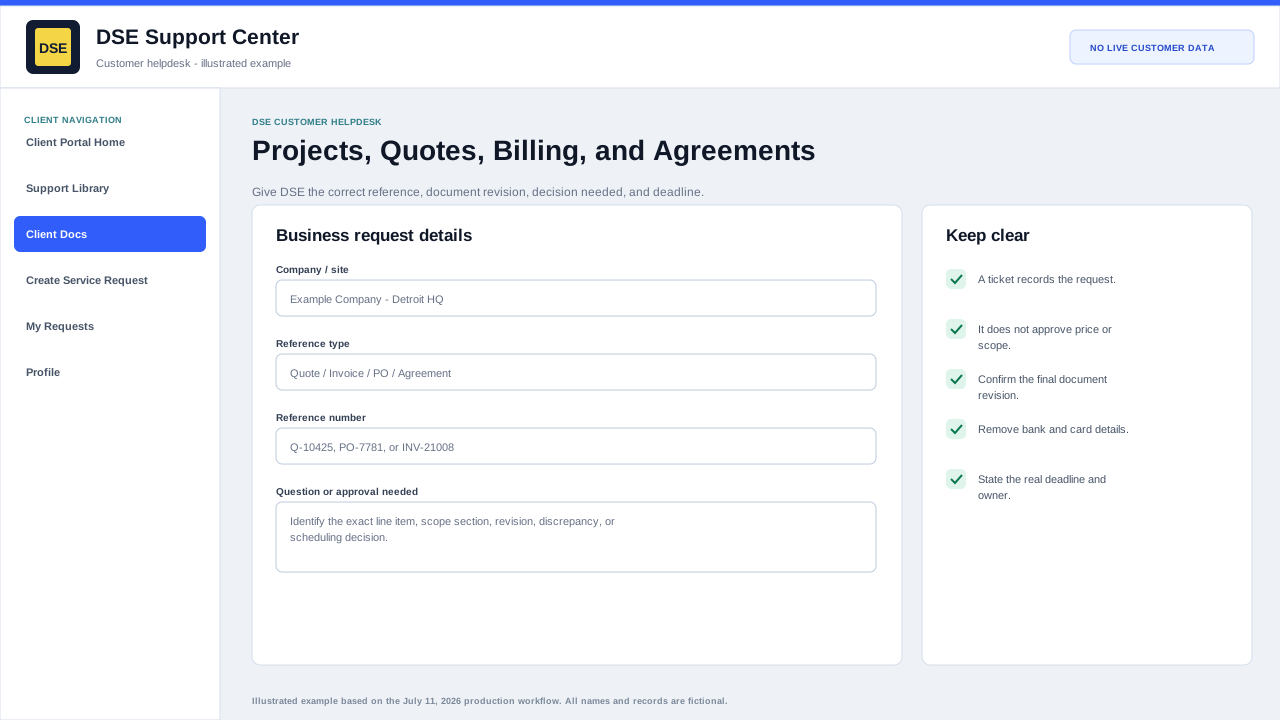 Open full size
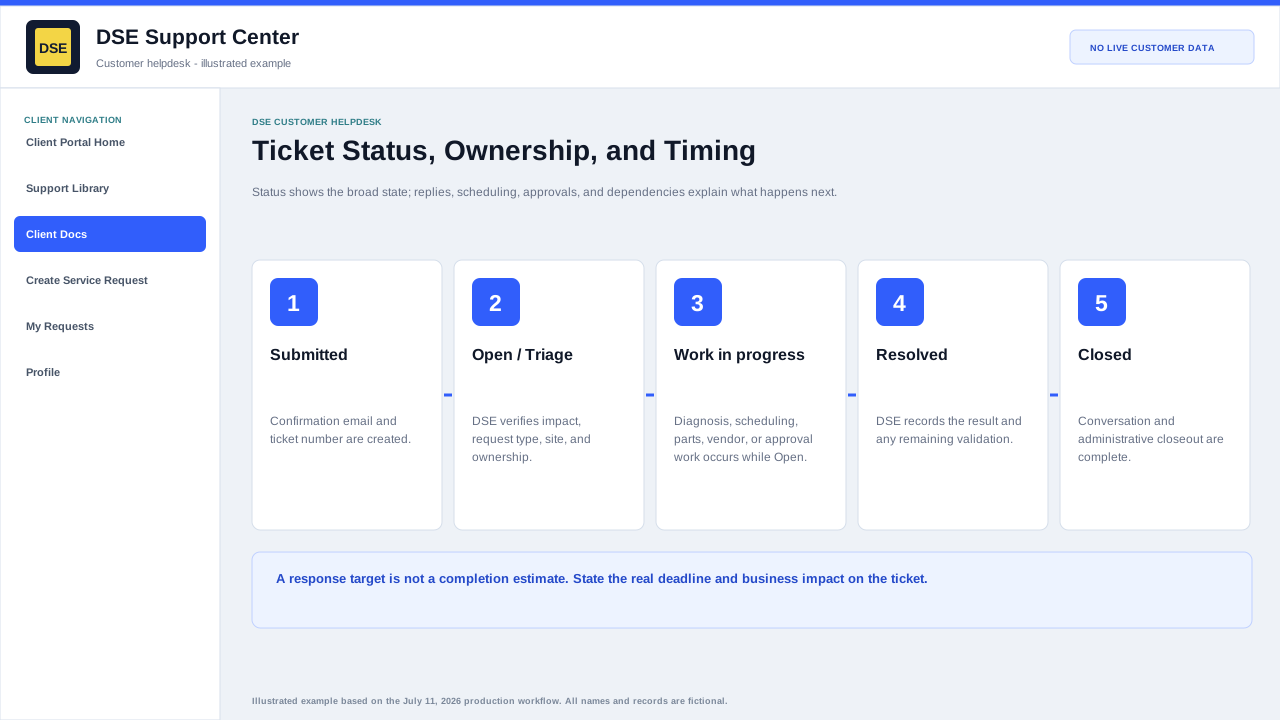 Open full size
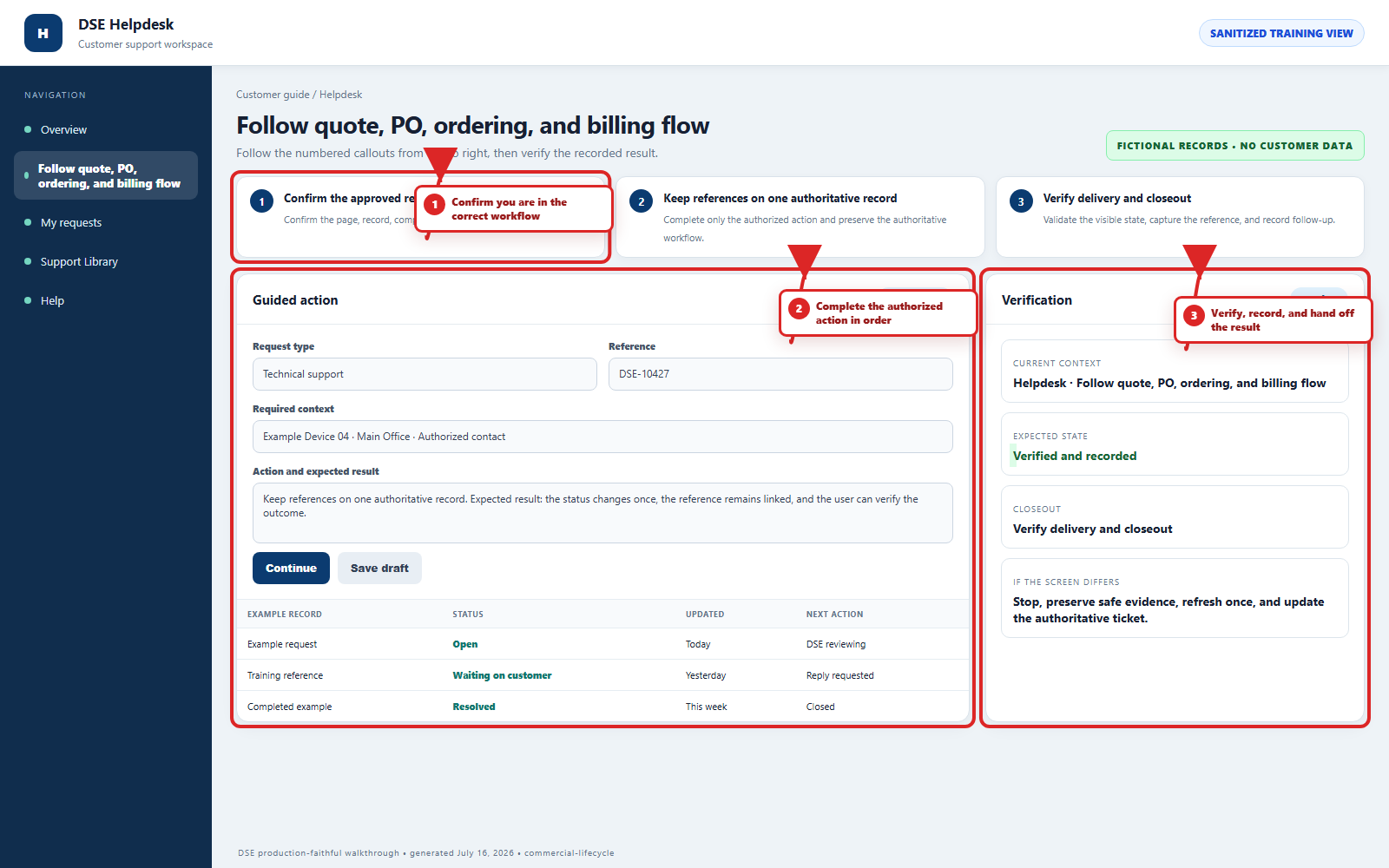 Open full size
1
Workflow section 1 of 6
Request or review a quote
-
Open one ticket with the customer, exact site, project or job name, requested outcome, scope, quantities, deadline, and authorized requester.
-
Reference the current quote or proposal number and revision when one already exists.
-
Ask questions on the same ticket so scope, assumptions, alternates, exclusions, and changes remain together.
-
Review the customer name, site, bill-to and ship-to information, quantities, price, tax, freight, lead time, and scope before approval.
2
Workflow section 2 of 6
Send approval or a purchase order
-
Follow your organization approval process and identify the person authorized to commit the purchase.
-
Send the approved purchase order or written authorization through the agreed secure business process.
-
Reference the exact DSE quote number and revision; do not approve an outdated or superseded document.
-
Ask DSE to confirm acceptance, scope, commercial conditions, and any information still required before ordering.
3
Workflow section 3 of 6
Track ordering and receiving
-
Keep product, license, subscription, freight, backorder, substitution, and estimated delivery updates on the same ticket.
-
Confirm the approved ship-to contact, address, delivery restrictions, and receiving hours before shipment.
-
When items arrive, compare packages and packing information with the expected order before installation or distribution.
-
Report shortages, damage, incorrect items, or license-delivery problems promptly with safe photos and reference numbers.
4
Workflow section 4 of 6
Move from delivery to scheduling
-
Confirm all required equipment, licenses, customer prerequisites, site access, outage windows, and decision-makers are ready.
-
Use the ticket to agree on installation, configuration, training, remote work, or onsite scheduling.
-
Treat a proposed date as unconfirmed until DSE records the agreed schedule.
-
Reply immediately when site conditions, access, scope, or availability changes.
5
Workflow section 5 of 6
Complete commercial closeout
-
Confirm delivered work or items against the approved quote, purchase order, revision, and ticket record.
-
Record remaining punch-list, return, warranty, training, documentation, or follow-up items.
-
Route invoice or billing questions with the invoice, purchase order, quote, ticket, line item, and exact discrepancy.
-
Do not place card numbers, bank credentials, signature keys, passwords, or unrelated financial records in a support ticket.
6
Workflow section 6 of 6
Confirm ownership and the next milestone
-
Confirm the customer, site, project or job, current document revision, and authorized decision-maker.
-
Record who owns the next action and the date or condition required before work advances.
-
Treat approved quotes, purchase orders, agreements, schedules, and invoices as authoritative business documents.
-
Use the same DSE-###### ticket for related clarification and a new ticket for an unrelated issue.
Final verification
Before you leave this guide
- Confirm context. Recheck the DSE domain, signed-in account, company or site, ticket number, device, and request type shown on screen.
- Confirm the result. Perform one harmless verification and make sure the visible status matches what you expected.
- Keep the reference. Save the DSE-###### ticket number, confirmation, or other safe reference needed to continue the same conversation.
- Stop on a mismatch. Do not repeat a high-impact action. Preserve a safe screenshot, note the time and exact error, refresh once, and update or open the correct DSE ticket.
Content owner: DSE Service Operations. Production reviewed July 16, 2026. Examples and visuals are customer-safe and use fictional data.