

Device status
Understand Endpoint Status and Background Monitoring
Understand the five exact Machine Status states, the status-card fields, what continues in the background, and the safe checks to complete before reporting a device condition.
Production address
https://helpdesk.dsesecurity.com/
Confirm HTTPS and the exact domain before entering account or ticket information.
Visual walkthrough
Open any visual for a full-size reference
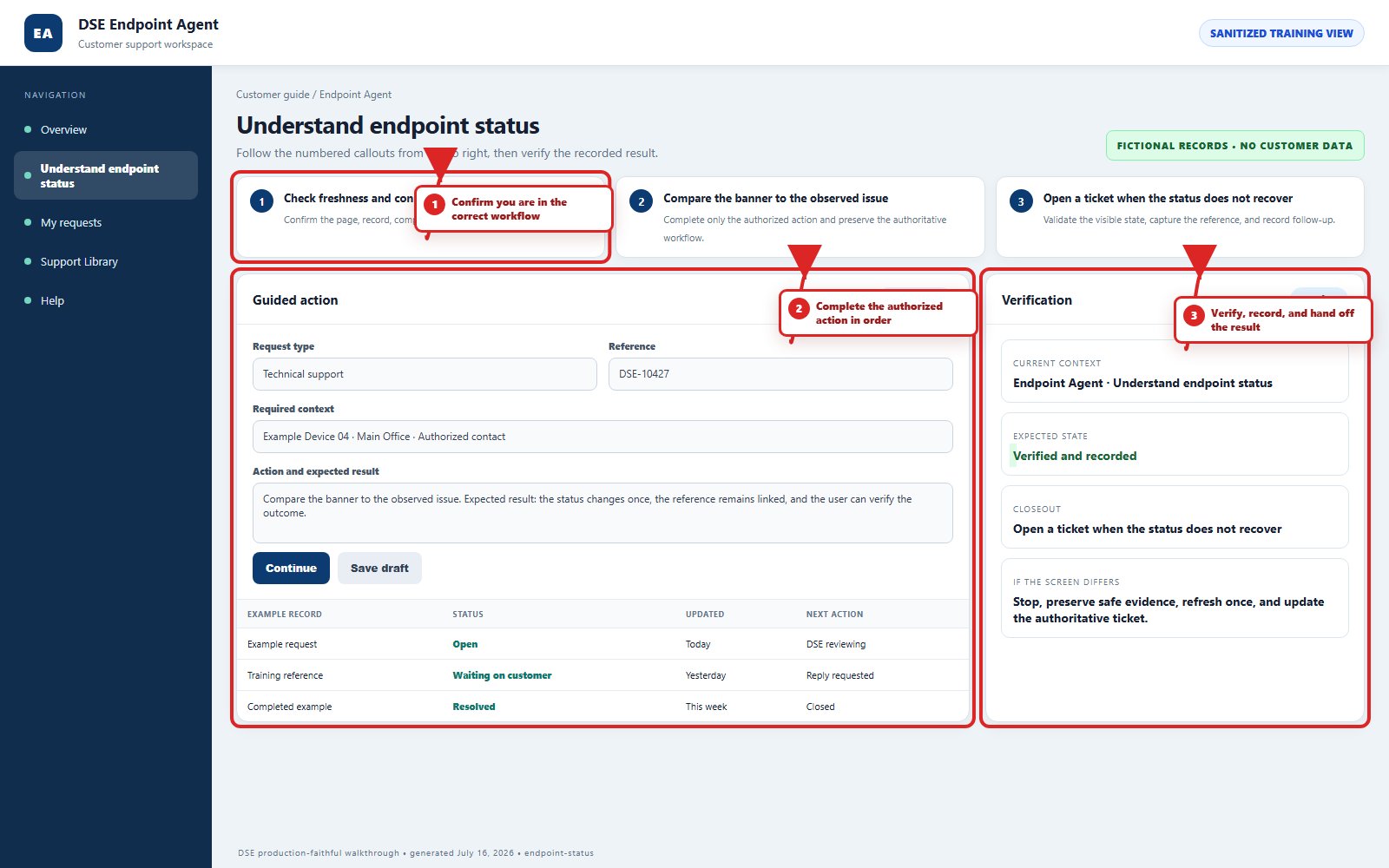
The annotated screenshot uses numbered red boxes and arrows. Read callouts 1, 2, and 3 in order, then return to the written steps below for the complete procedure.
 Open full size
 Open full size
 Open full size
1
Workflow section 1 of 6
Identify the exact Machine Status state
-
Protected indicates that Machine Status is not currently presenting a condition that requires customer action.
-
Attention recommended indicates that one or more conditions should be reviewed; the expanded Machine Status card shows the corresponding banner CHECK RECOMMENDED. Use the risk score and open alerts as context.
-
Action required indicates that Machine Status is presenting a condition that needs prompt review; open or update a DSE ticket with the displayed details.
-
Offline indicates that the endpoint is not currently reporting an active agent connection; the expanded card shows AGENT OFFLINE. Compare the last check-in with the current local time and timezone.
-
Status pending indicates that current status has not finished loading or refreshing; wait briefly, choose Refresh status, and check again before reporting the result.
2
Workflow section 2 of 6
Read and verify the status card
-
Review the risk score and open alerts to understand the amount of currently displayed attention.
-
Review last check-in and compare it with the current local time and timezone.
-
Confirm the hostname and device ID match the computer you intend to report.
-
Confirm the organization and assignment match the expected customer and responsible assignment.
-
Use Refresh status when the card appears old or shows Status pending, then allow time for the new result.
-
Use Copy device info only for an authorized DSE ticket or support conversation and verify the destination before pasting.
3
Workflow section 3 of 6
Complete safe local checks
-
Confirm the computer is powered on and Windows is responsive.
-
Confirm the device has normal approved network access without changing managed firewall, VPN, or security settings.
-
Check whether the condition affects one device, several devices at one site, or all devices you can observe.
-
Do not stop services, delete files, remove the agent, or install another remote tool unless DSE directs the step.
4
Workflow section 4 of 6
Know what continues in the background
-
The endpoint service can continue approved health and connection work when no customer is actively using the desktop.
-
A signed-out Windows user does not by itself mean the endpoint is Agent offline.
-
Selecting Exit DSE tray closes the tray application only; it does not stop the background endpoint service or background monitoring.
-
A tray state is not a substitute for a ticket when a person, device, or business service is currently affected.
-
DSE uses the ticket to confirm scope, authorization, communication, and the next action.
5
Workflow section 5 of 6
Report Attention recommended, Action required, or Offline
-
Open one ticket and identify the hostname, device ID, user, company, site, exact displayed state, risk score, open alerts, and last check-in.
-
Describe any recent restart, Windows update, network change, power event, travel, office move, or security-software message.
-
State whether the device is available for a remote session and whether restarting it would interrupt active work.
-
Keep the device powered and connected when practical, then reply on the same ticket if its status changes.
6
Workflow section 6 of 6
Finish and verify endpoint support
-
Confirm the endpoint status, remote-session state, and original symptom after the approved action.
-
Save customer work, have the technician select Clear secure relay after clipboard transfer, and lock Windows when stepping away.
-
Keep all follow-up on the same DSE-###### ticket for the same issue.
-
Report unexpected remote activity, missing tray status, or a failed validation immediately.
Final verification
Before you leave this guide
- Confirm context. Recheck the DSE domain, signed-in account, company or site, ticket number, device, and request type shown on screen.
- Confirm the result. Perform one harmless verification and make sure the visible status matches what you expected.
- Keep the reference. Save the DSE-###### ticket number, confirmation, or other safe reference needed to continue the same conversation.
- Stop on a mismatch. Do not repeat a high-impact action. Preserve a safe screenshot, note the time and exact error, refresh once, and update or open the correct DSE ticket.
Content owner: DSE Service Operations. Production reviewed July 16, 2026. Examples and visuals are customer-safe and use fictional data.