

Scheduling
Prepare for Remote Support, Callbacks, and Onsite Work
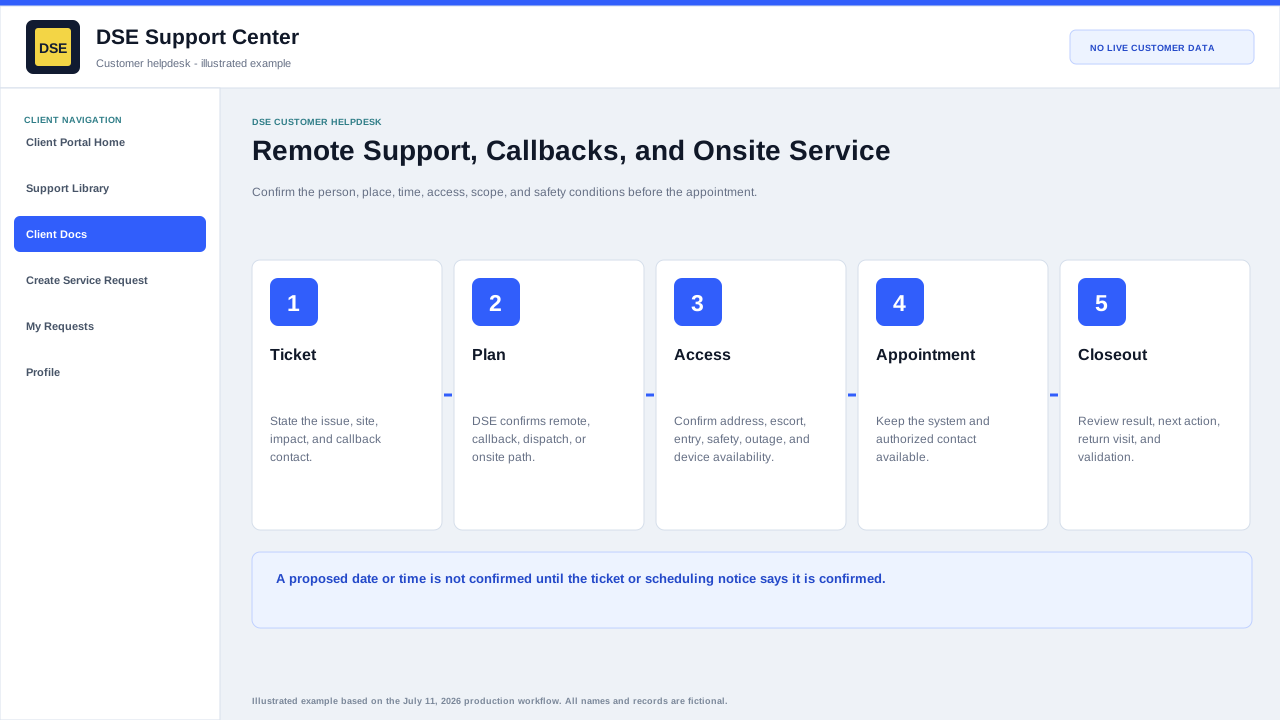
A confirmed contact, site, access window, scope, safety context, and available device help DSE use the scheduled time effectively.
Production address
https://helpdesk.dsesecurity.com/
Confirm HTTPS and the exact domain before entering account or ticket information.
Visual walkthrough
Open any visual for a full-size reference
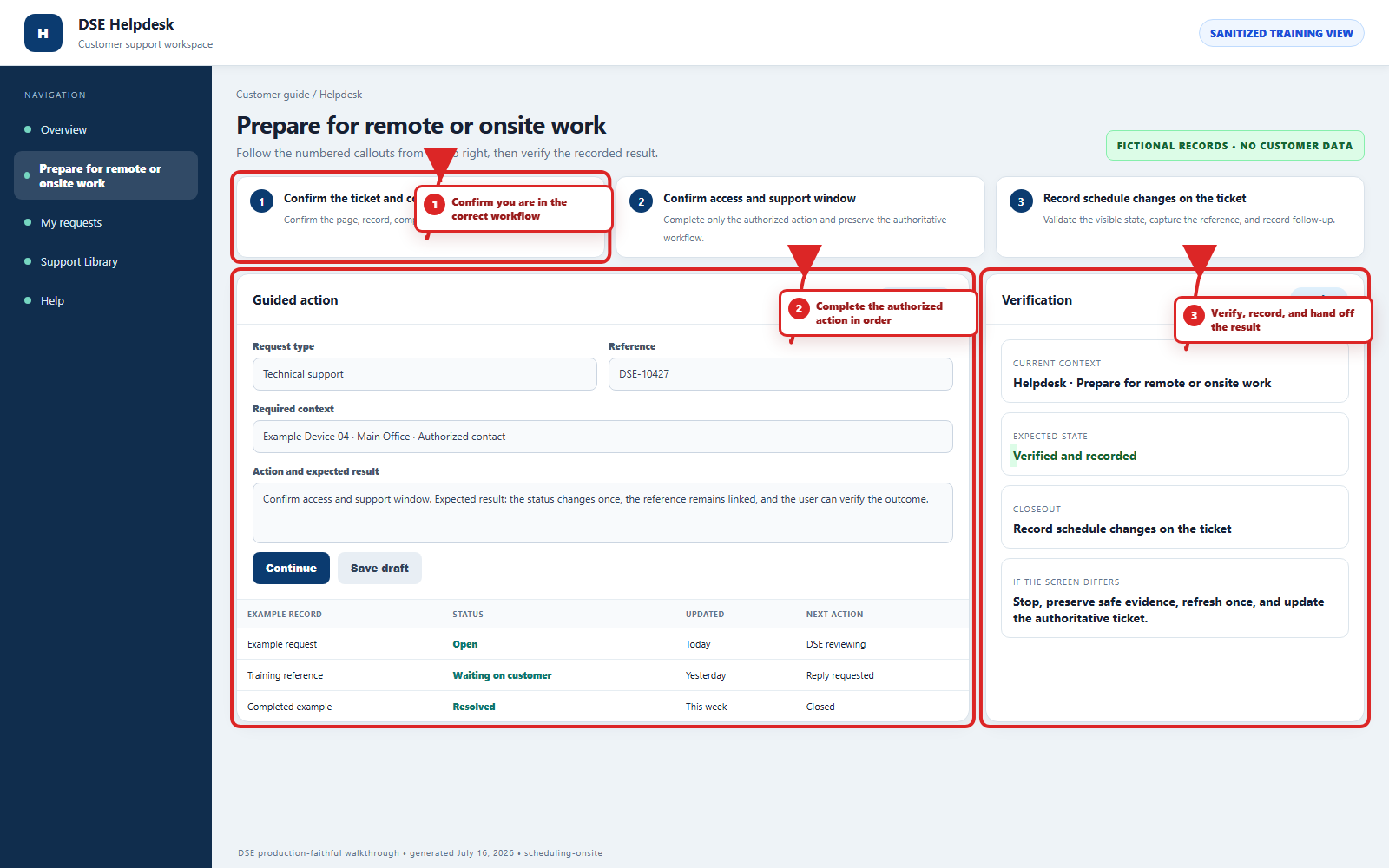
The annotated screenshot uses numbered red boxes and arrows. Read callouts 1, 2, and 3 in order, then return to the written steps below for the complete procedure.
 Open full size
Open full size
Open full size
 Open full size
1
Workflow section 1 of 3
Before the appointment
-
Confirm the ticket number, date, time, timezone, arrival or callback window, and best contact.
-
Confirm site address, entrance, parking, escort, access restrictions, safety requirements, and any approved outage window.
-
Make the affected device, system, user, examples, and authorized decision-maker available.
-
Tell DSE about deadline, production impact, occupancy, active construction, or another vendor who must participate.
-
Do not send remote-access credentials in the ticket; use the approved secure process during the session.
2
Workflow section 2 of 3
When the plan changes
-
Reply on the same ticket as soon as the contact, access, time, scope, or site condition changes.
-
State whether work can continue remotely or must be rescheduled.
-
Confirm any new time with DSE; a proposed time is not confirmed until the ticket or scheduling notice says so.
-
After work, review the result, remaining action, return visit, and customer validation recorded on the ticket.
3
Workflow section 3 of 3
Confirm ownership and the next milestone
-
Confirm the customer, site, project or job, current document revision, and authorized decision-maker.
-
Record who owns the next action and the date or condition required before work advances.
-
Treat approved quotes, purchase orders, agreements, schedules, and invoices as authoritative business documents.
-
Use the same DSE-###### ticket for related clarification and a new ticket for an unrelated issue.
Final verification
Before you leave this guide
- Confirm context. Recheck the DSE domain, signed-in account, company or site, ticket number, device, and request type shown on screen.
- Confirm the result. Perform one harmless verification and make sure the visible status matches what you expected.
- Keep the reference. Save the DSE-###### ticket number, confirmation, or other safe reference needed to continue the same conversation.
- Stop on a mismatch. Do not repeat a high-impact action. Preserve a safe screenshot, note the time and exact error, refresh once, and update or open the correct DSE ticket.
Content owner: DSE Service Operations. Production reviewed July 16, 2026. Examples and visuals are customer-safe and use fictional data.